
PixelPop Companion · App reference
Your whole board, in your pocket.
Pick your device to see every screen and feature of PixelPop Companion on it. Companion talks to your board over your home Wi-Fi. No account needed.
iPhone
PixelPop Companion for iPhone.

Free. PixelPop Watch is included.
Setup
Getting on Wi-Fi.
A new PixelPop starts in setup mode and makes its own network. Join the PixelPop network, open its page, and enter your home 2.4 GHz Wi-Fi name and password. The board restarts and joins your network. Wi-Fi help walks through it.
The first time you open Companion, iOS asks to find devices on your local network. Tap Allow; that's how the app finds your board.
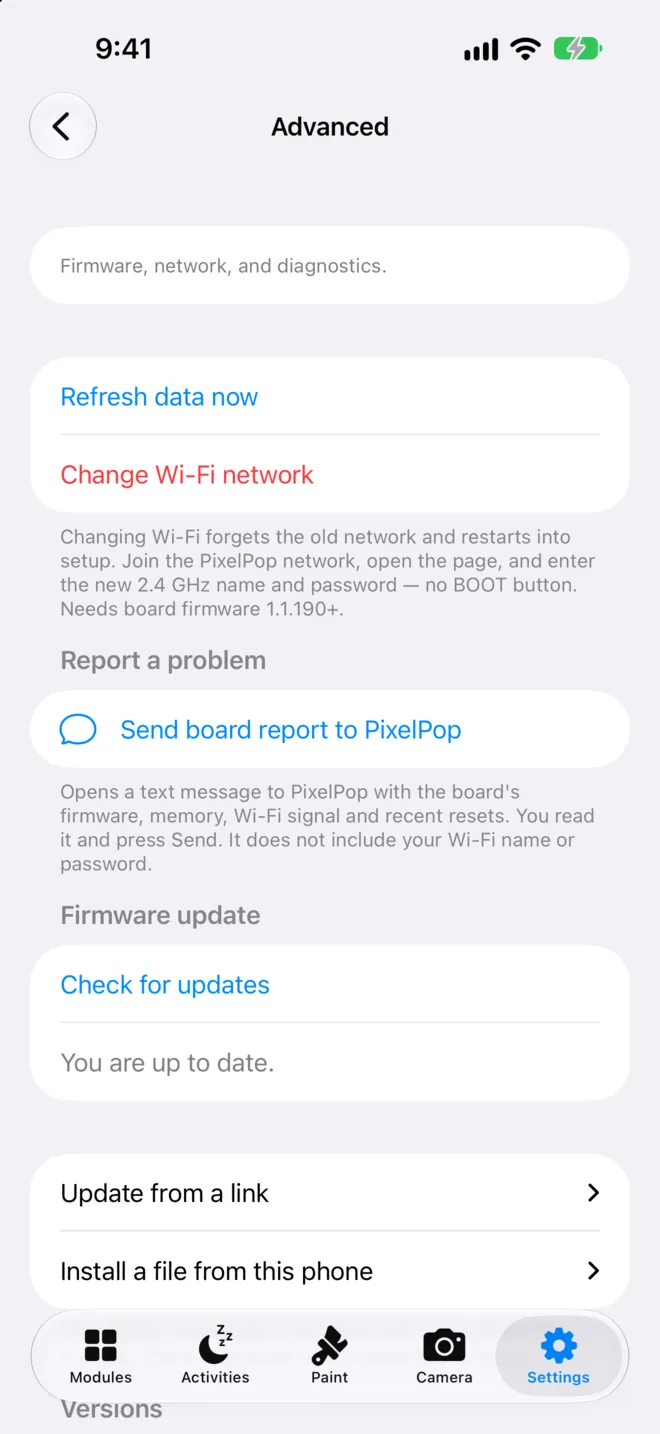
To move a board to another network later, open Settings → Advanced → Change Wi-Fi. The board forgets the old network and restarts into setup, no BOOT button needed (firmware 1.1.190 or later). The Mac app can also send your Wi-Fi to a new board.
Board discovery
Find, pick, identify.
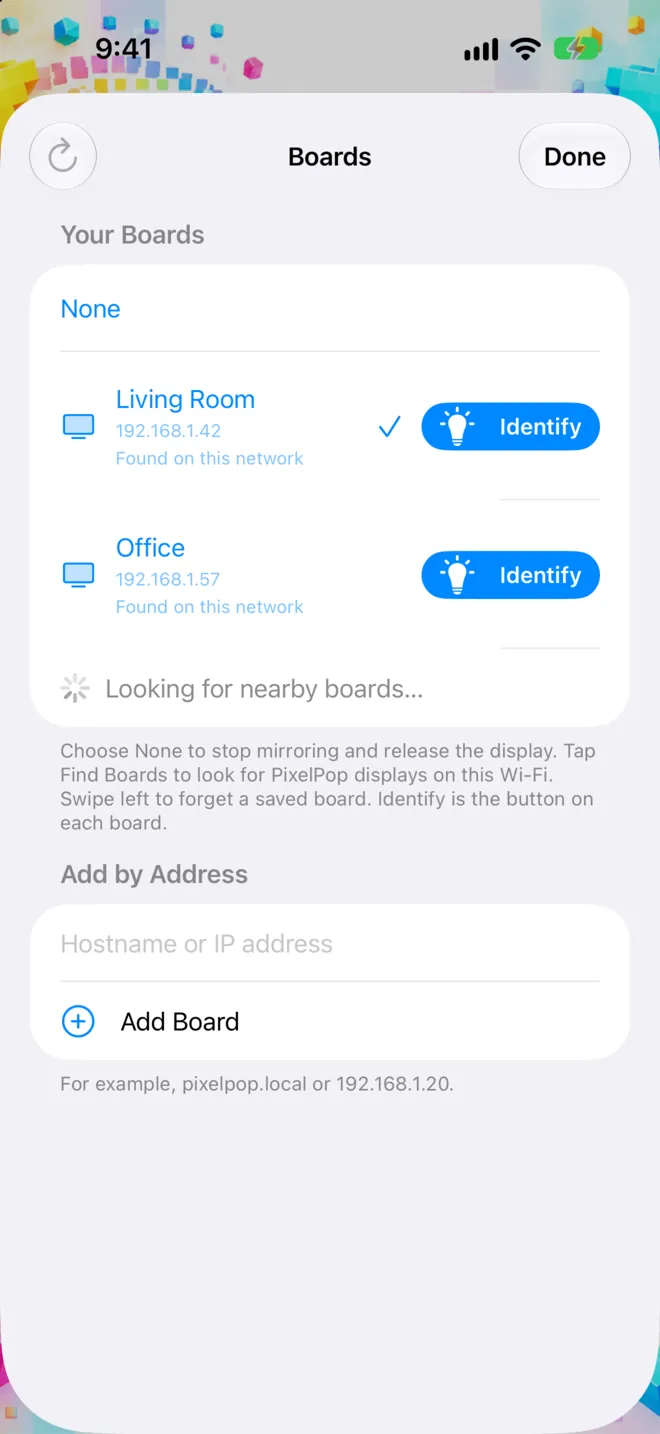
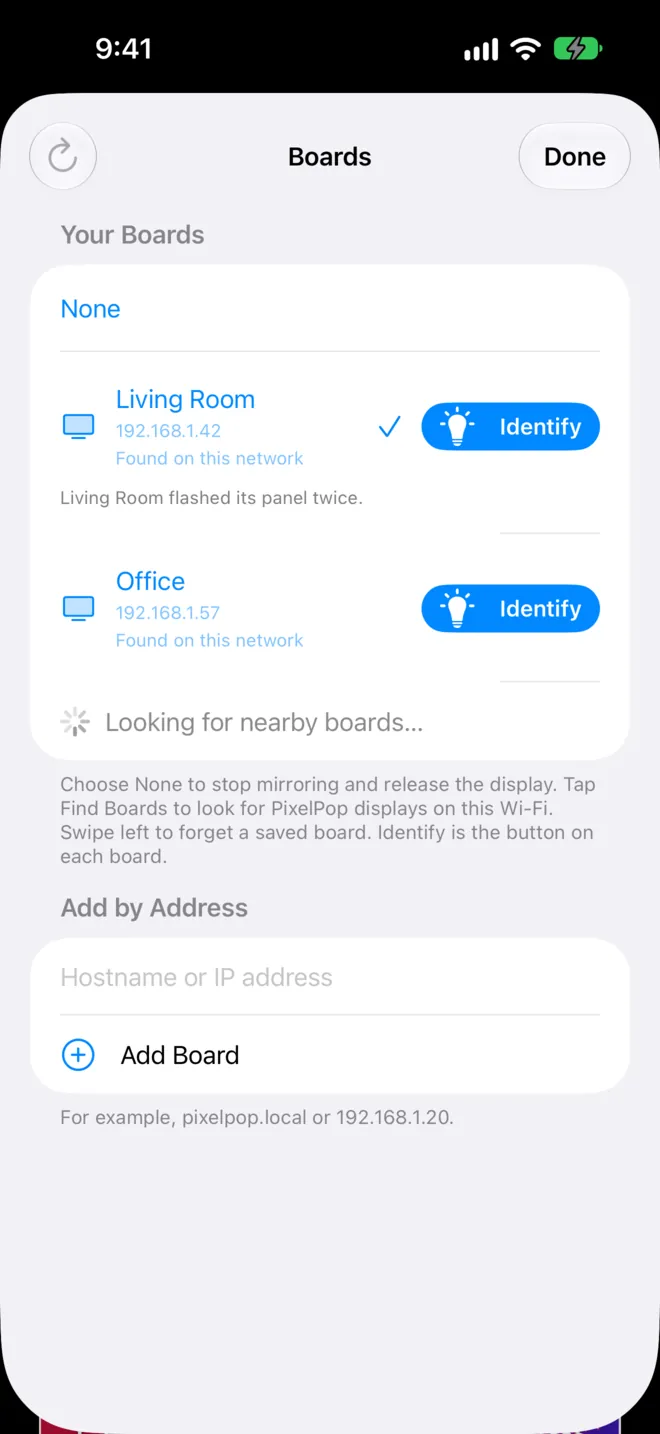
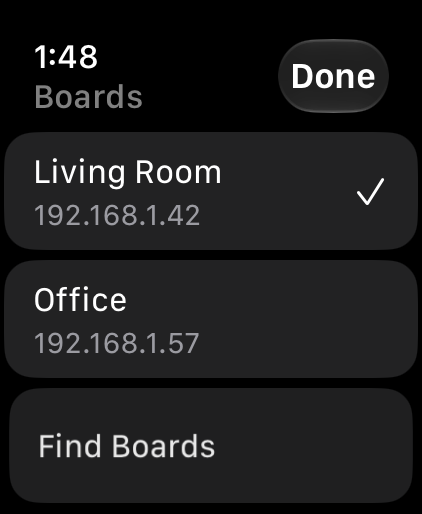
Tap the board button (a little TV and the board's name) at the top of a tab to open Boards. It starts looking right away.
- Find Boards searches your Wi-Fi again. Boards on firmware 1.1.30 or later appear on their own.
- Tap a board to use it; a checkmark marks your choice and Companion remembers it. None stops mirroring and releases the display.
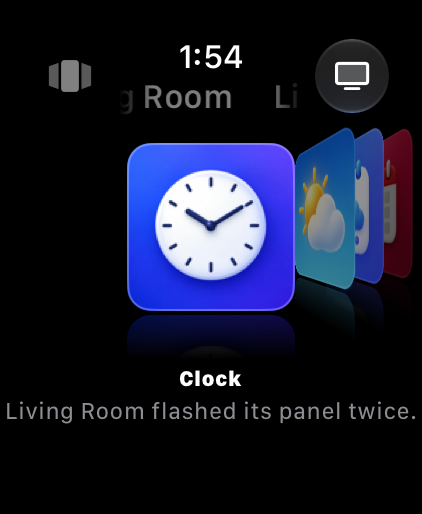
- Identify flashes that board's panel twice, so you know which is which.
- Add by Address: type a name or IP (for example pixelpop.local or 192.168.1.20) and tap Add Board. Works on any firmware.
- Swipe left on a saved board to forget it.
Layout
Five tabs.
On iPhone, Paint holds the screen upright (portrait) while you draw; the rest of the app turns with your phone.
- Modules (AutoPops): what plays, and in what order.
- Activities: things you start on purpose.
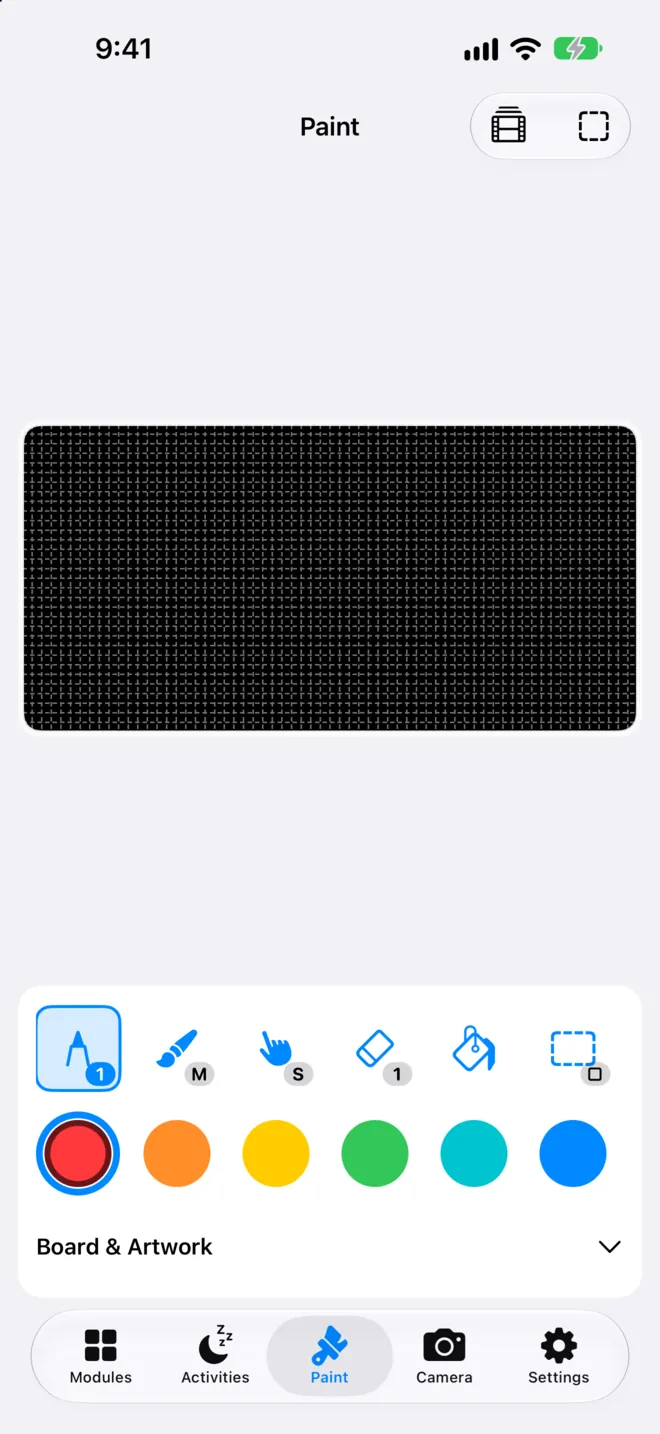
- Paint: draw live on the 64×32 panel.
- Camera: your camera on the board, plus snapshots.
- Settings: brightness, sleep, Chimes, and everything else.
AutoPops
Your rotation, card by card.
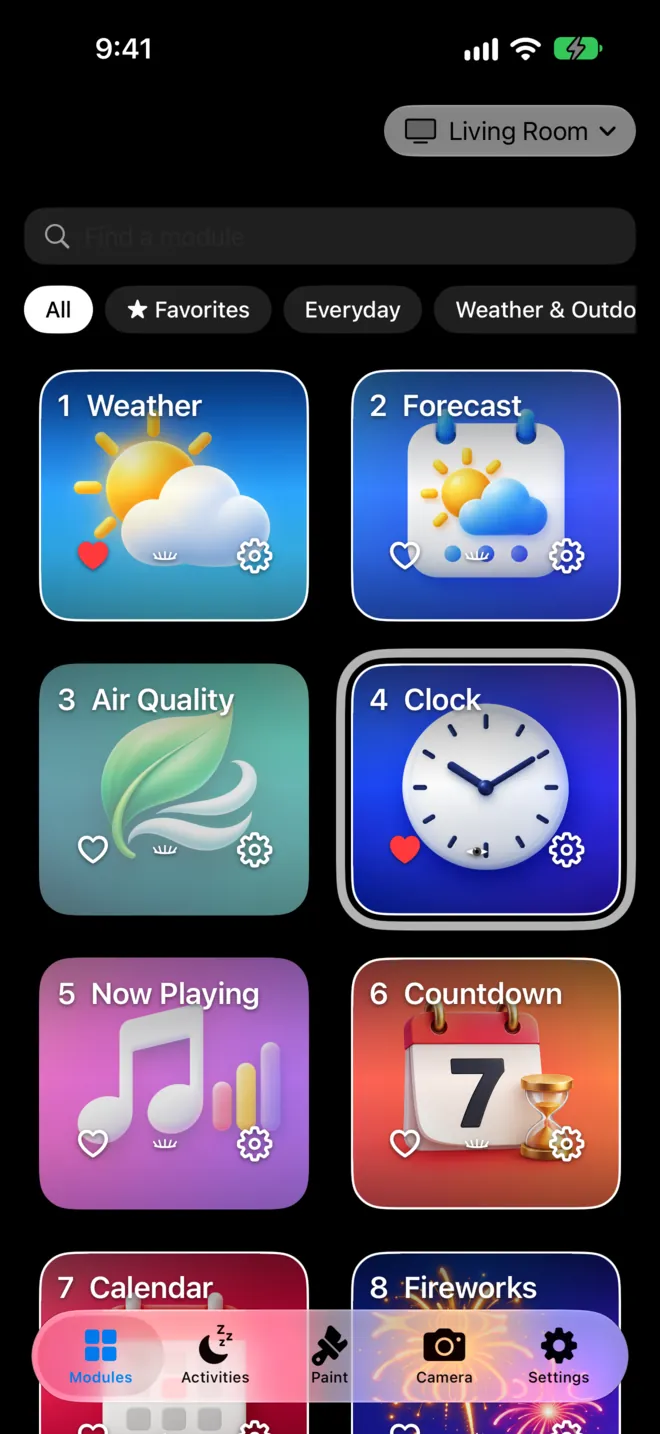
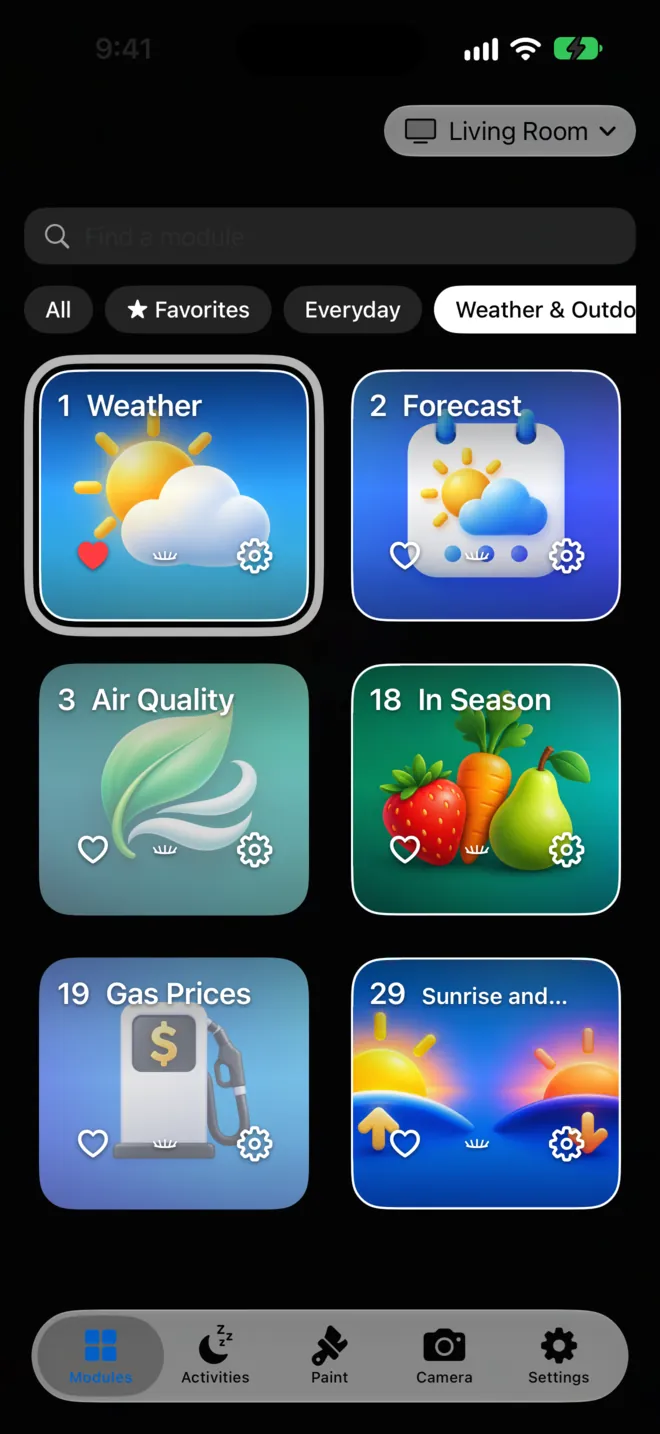
Every AutoPop on your board gets a card. The number is its place in the rotation. Cards with a white border are on; the board skips the rest. A gray ring marks what's on the board right now.
- Tap a card to turn it on or off. Drag to change the order.
- The heart adds it to Favorites, the eye shows it on the board now, the gear opens its settings.
- Search narrows the grid by name. Filters: All, Favorites, Everyday, Weather & Outdoors, Entertainment, Pets, Travel, Messages.
- Each AutoPop's settings open as a native screen with the same options as the board's own page (for example clock style, CTA stops, Photo Album).
- Two cards come from your iPhone rather than the board, Fitness rings and Sunrise & Sunset. Their eye sends a picture from the phone to the panel.
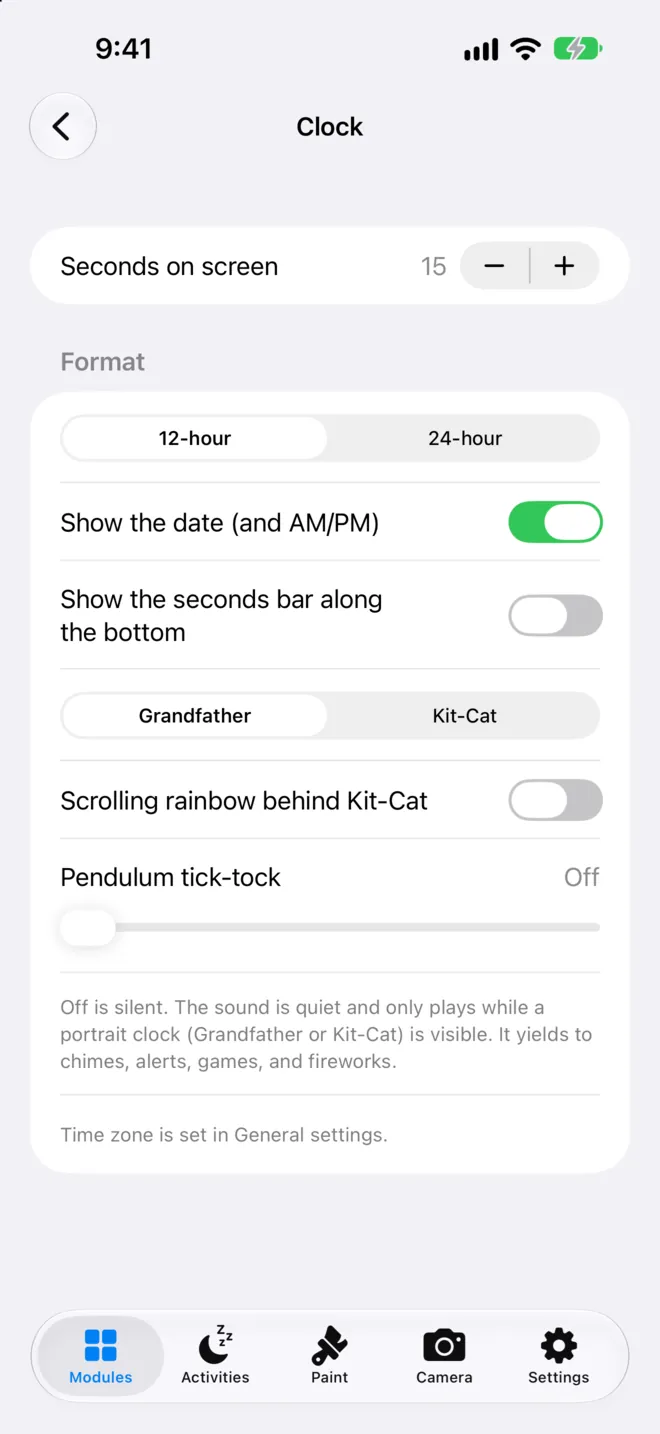
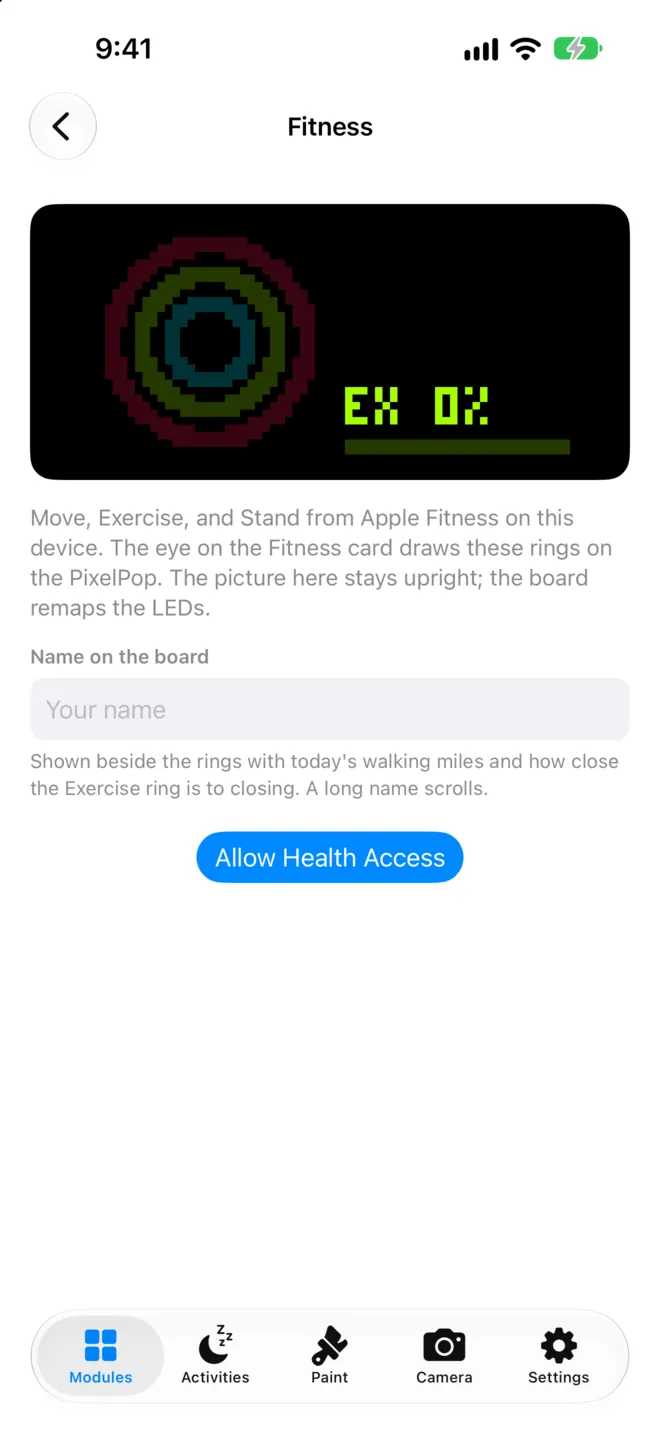
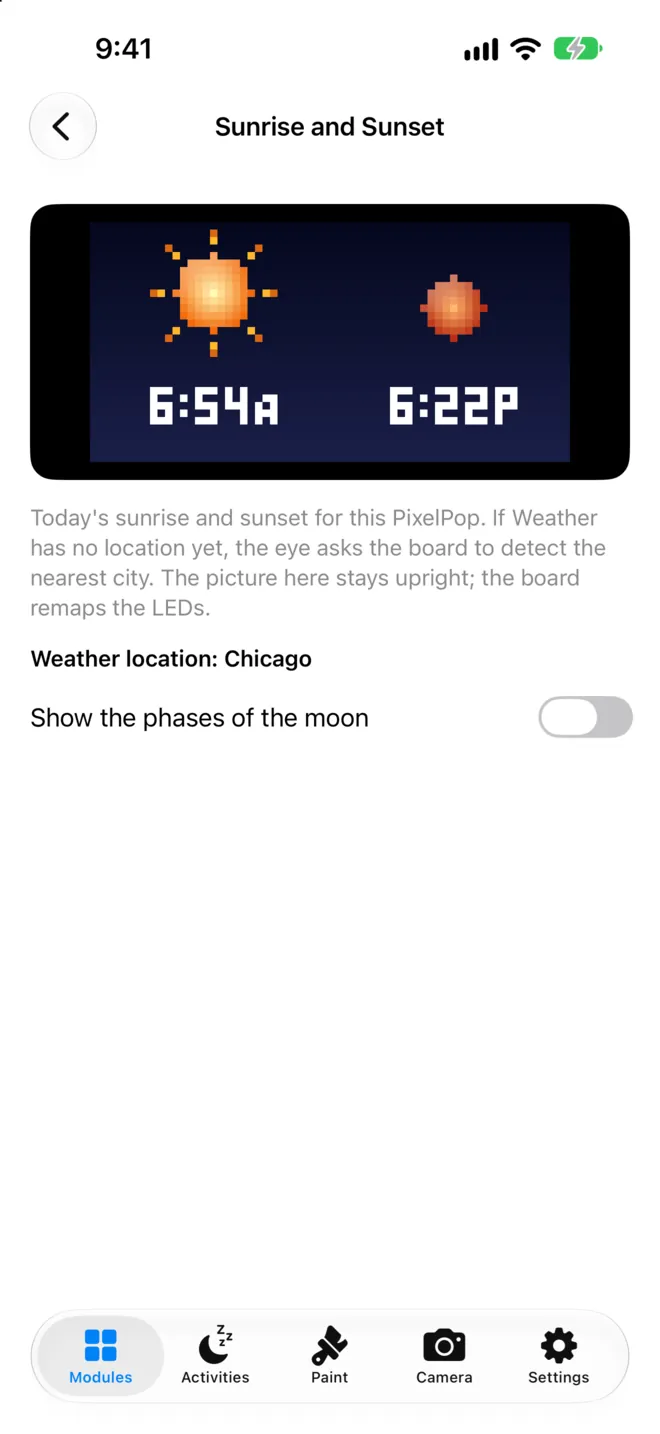
Activities
Start it when you need it.
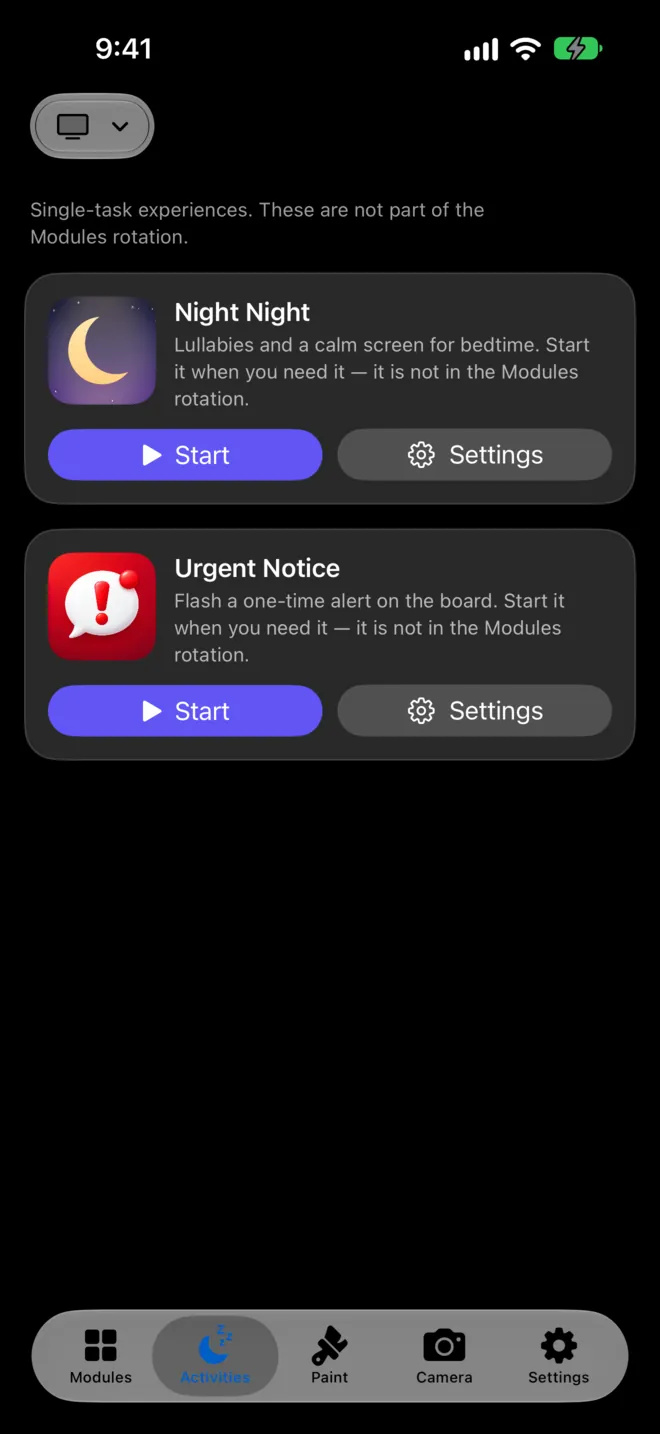
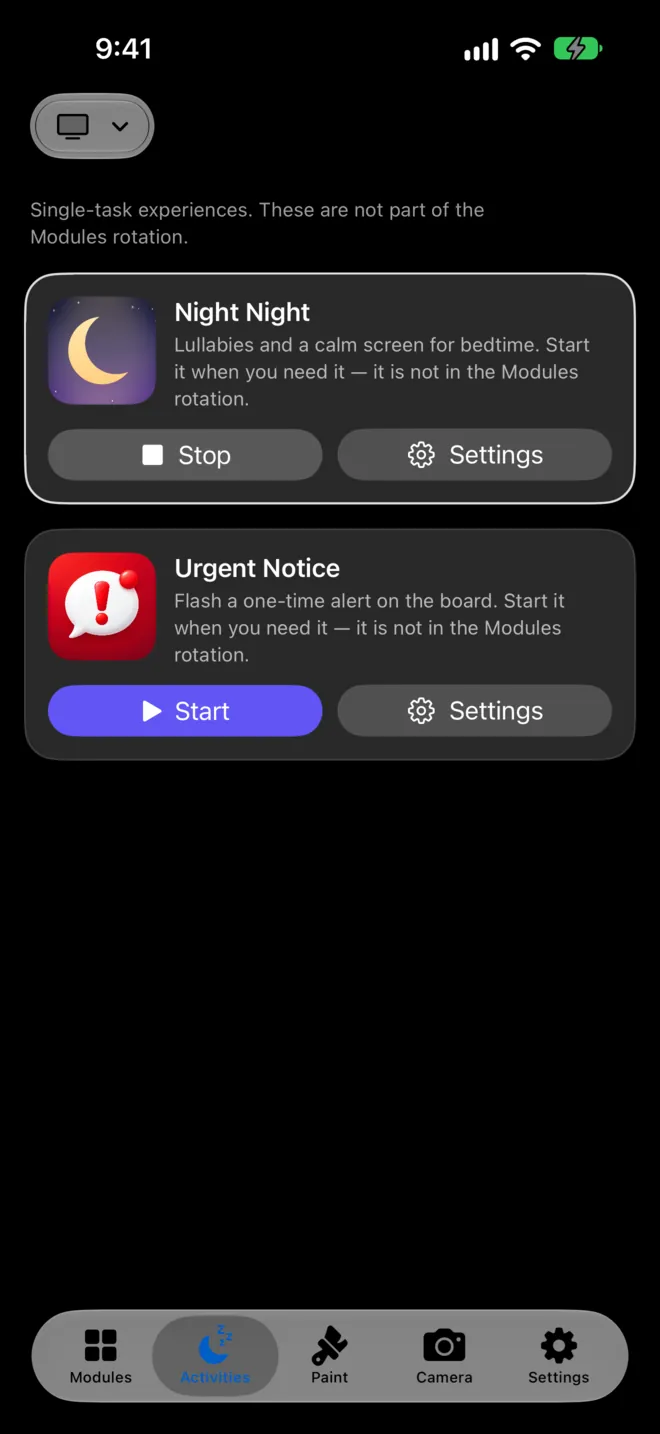
Activities aren't part of the rotation, and only one runs at a time. While one runs, its card gets a white outline and Start becomes Stop.
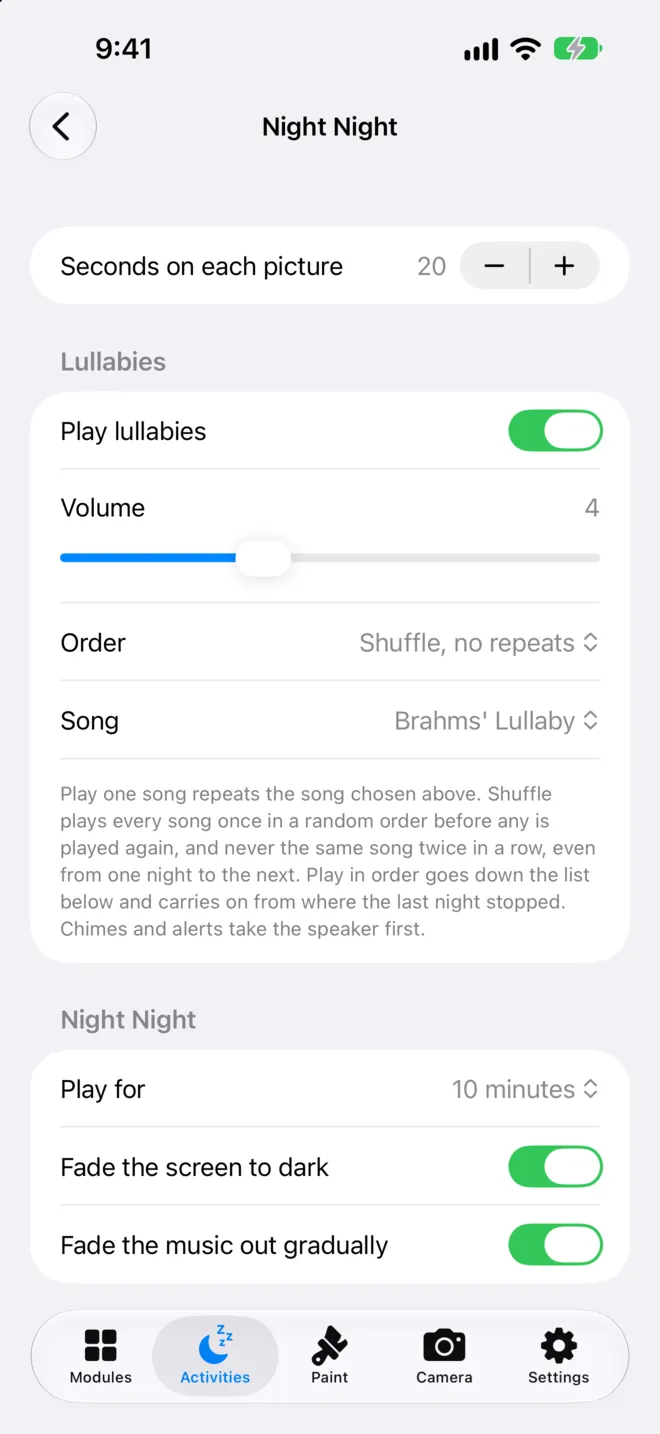
- Night Night: a bedtime routine with lullabies.
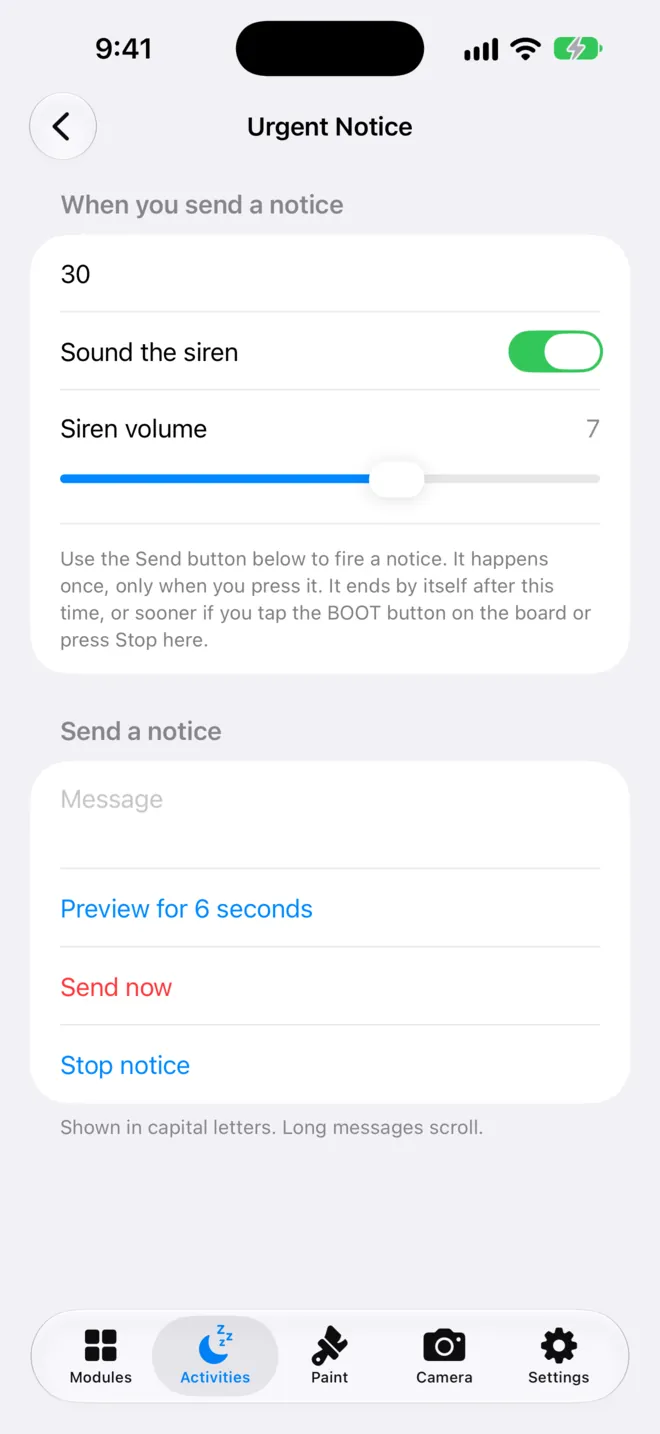
- Urgent Notice: "come here now." Start gets it ready; send the notice from its Settings.
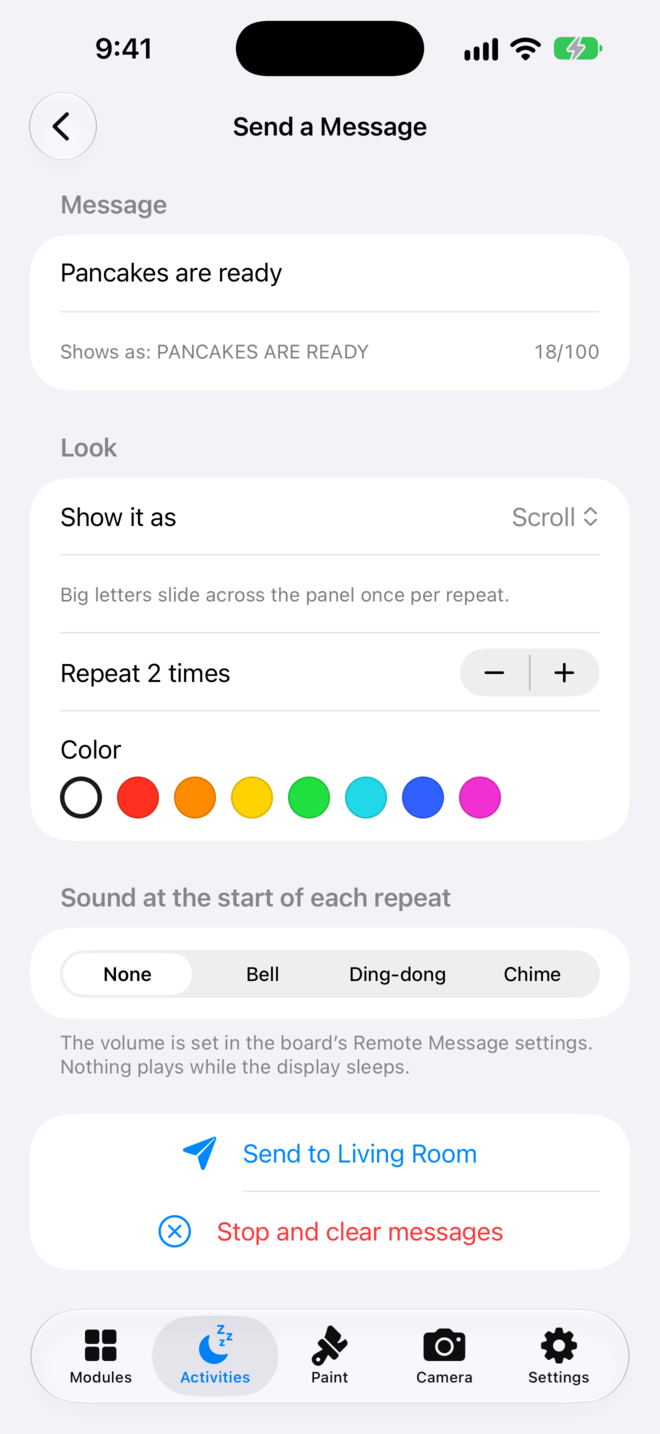
- Send a Message: type what the board should say, pick a color and look, how many times it repeats, and an optional sound. Stop and clear messages ends it.
- Pomodoro: a focus timer on the panel.
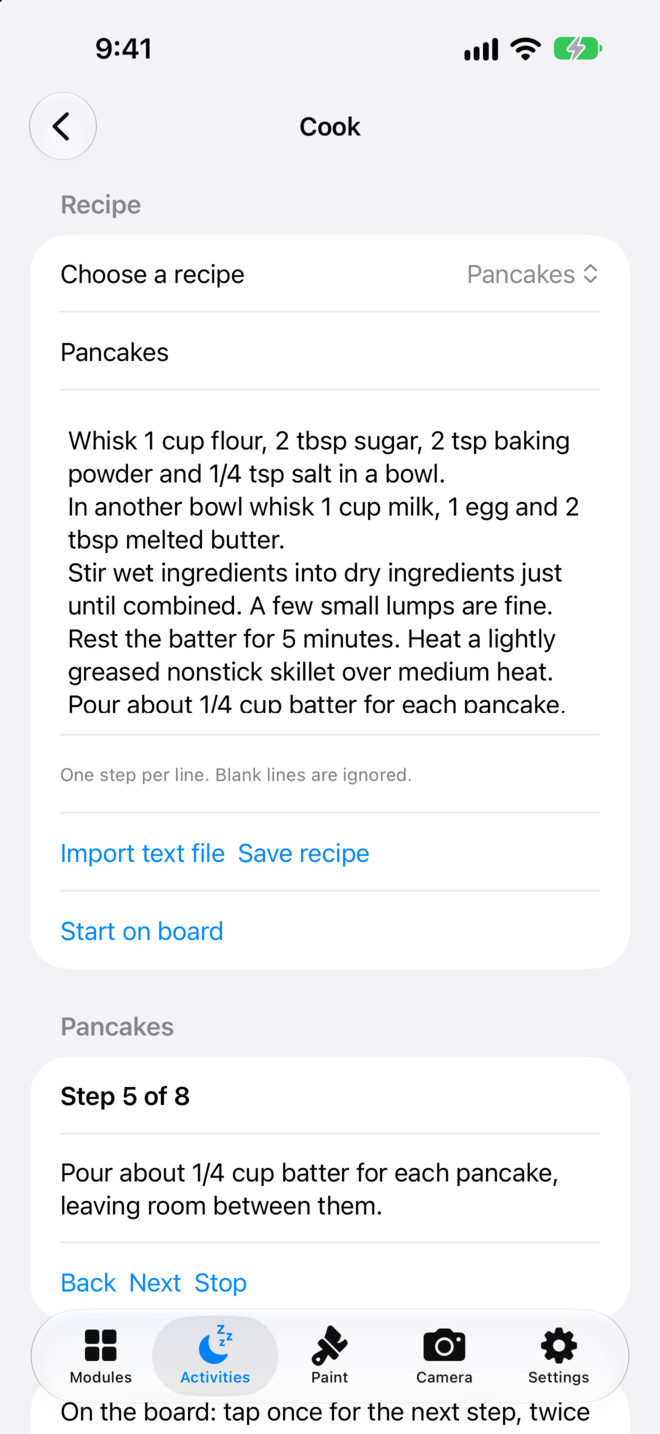
- Cook: kitchen timing, step by step.
Paint
Draw here. It lights up there.
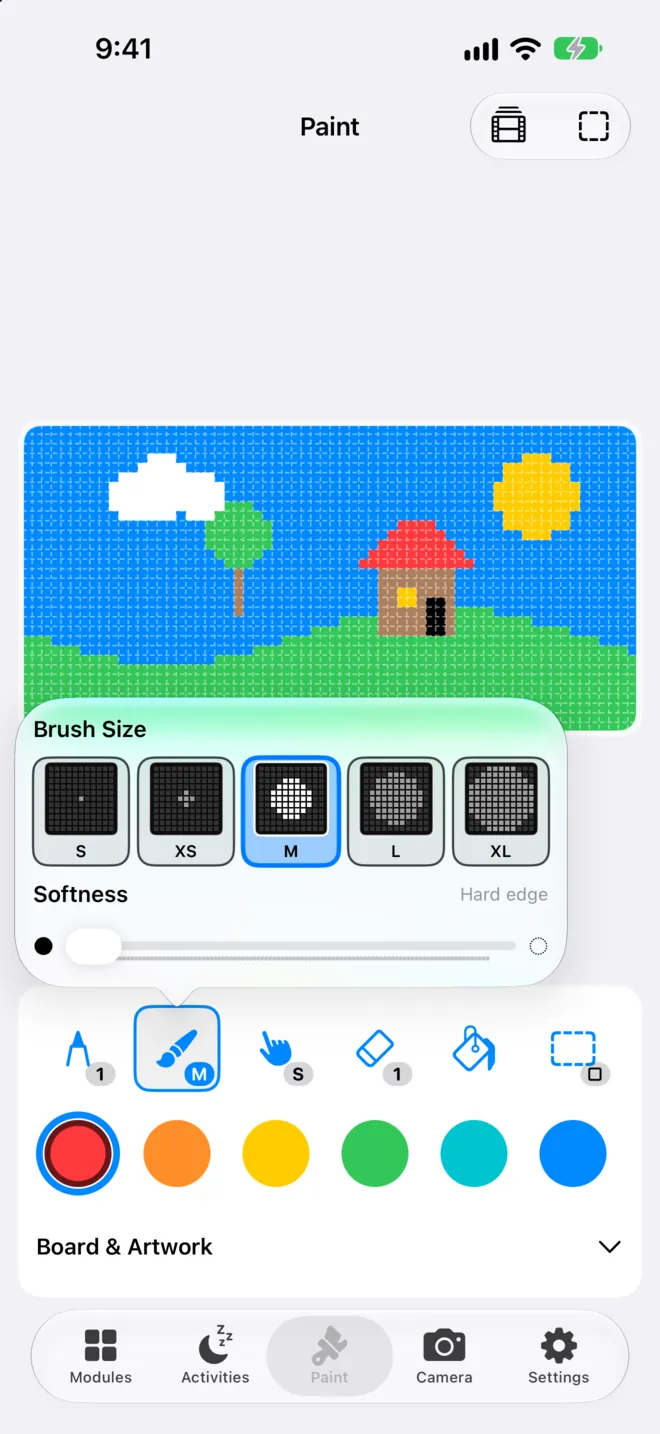
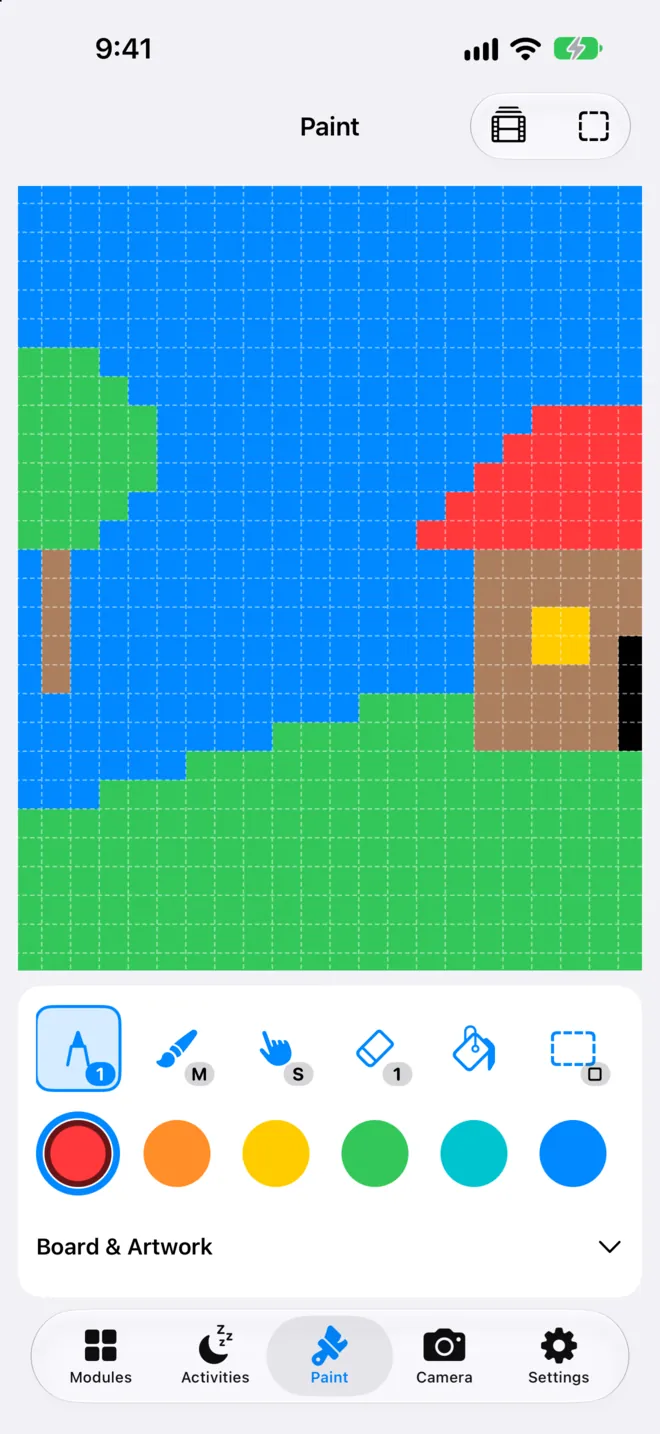
A 64×32 canvas, one square per LED. While Paint is open the panel mirrors every stroke; leave Paint and your AutoPops return. Stand the board on its side and the canvas turns tall (32×64). More on the Paint page.
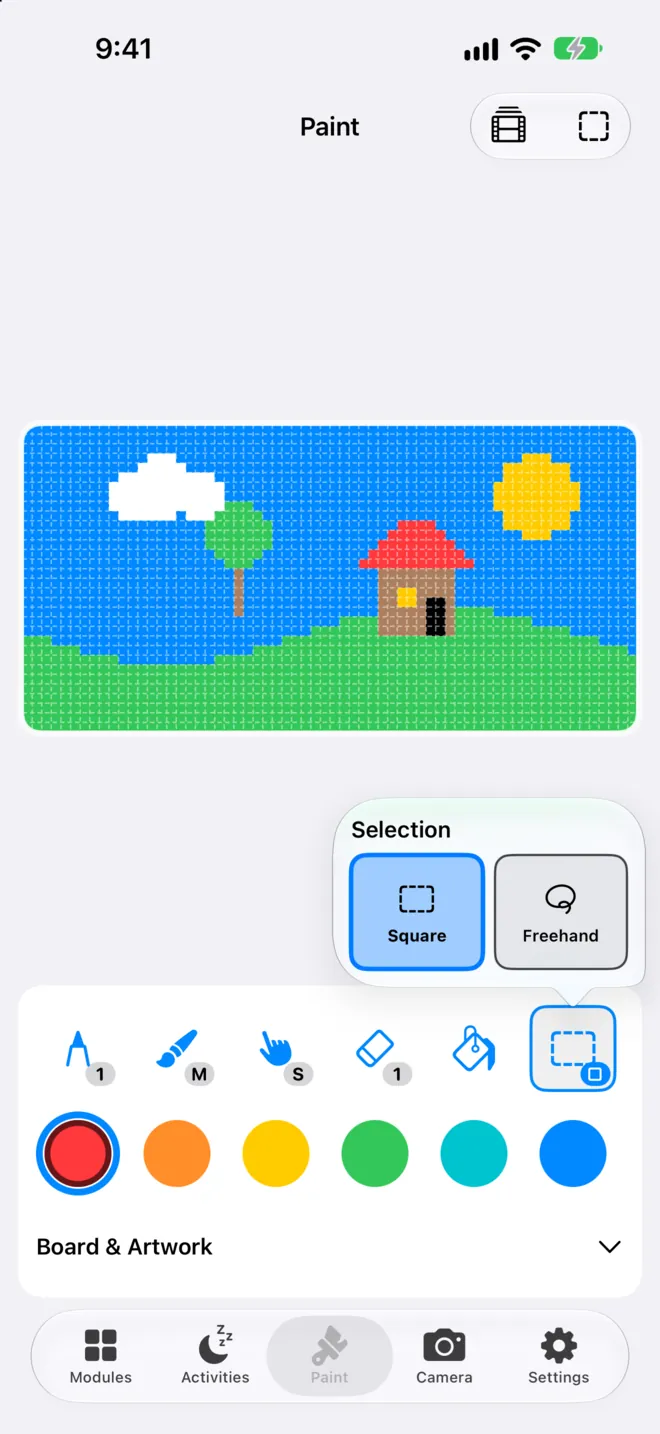
- Tools: pencil, brush, eraser, fill, select & move, zoom. Swipe the tool row for Undo and Redo.
- Colors: twelve swatches plus a rainbow chip for any color.
- Pixel shape: dotted square, solid square, or circle (phone display only).
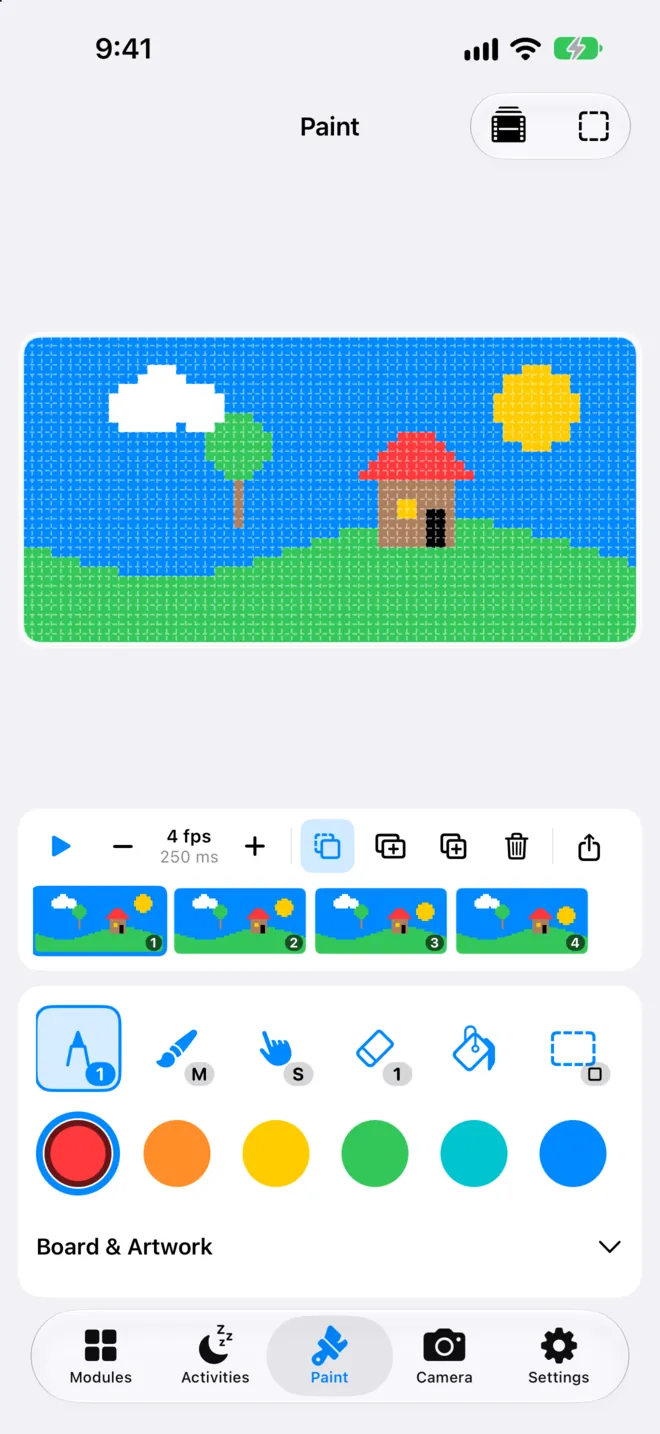
- Frames: build an animation. Play, 1–12 fps, onion skin, add/duplicate/delete, drag to reorder, Share GIF, Save animation to PopArt.
PopArt & Gallery
Keep it. Share it. Hang it up.
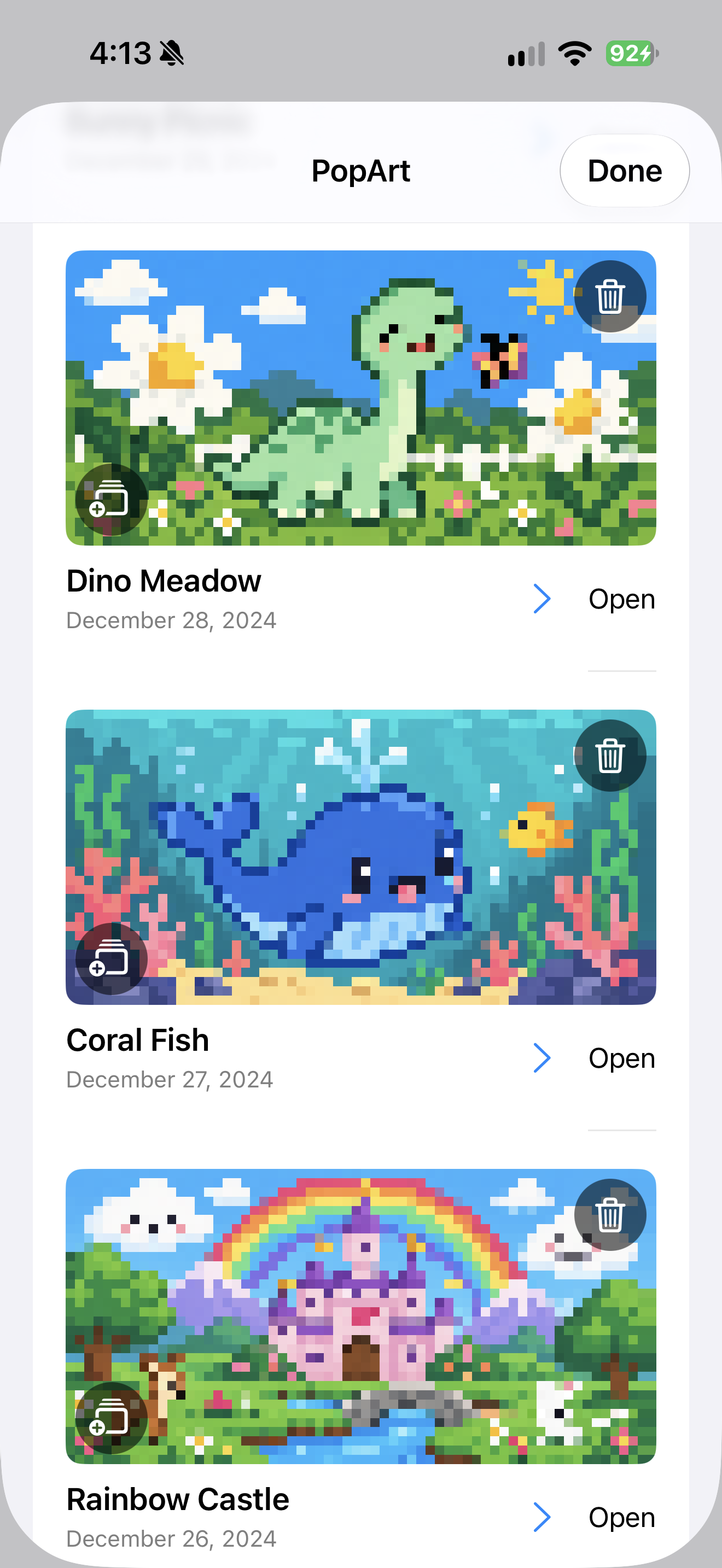
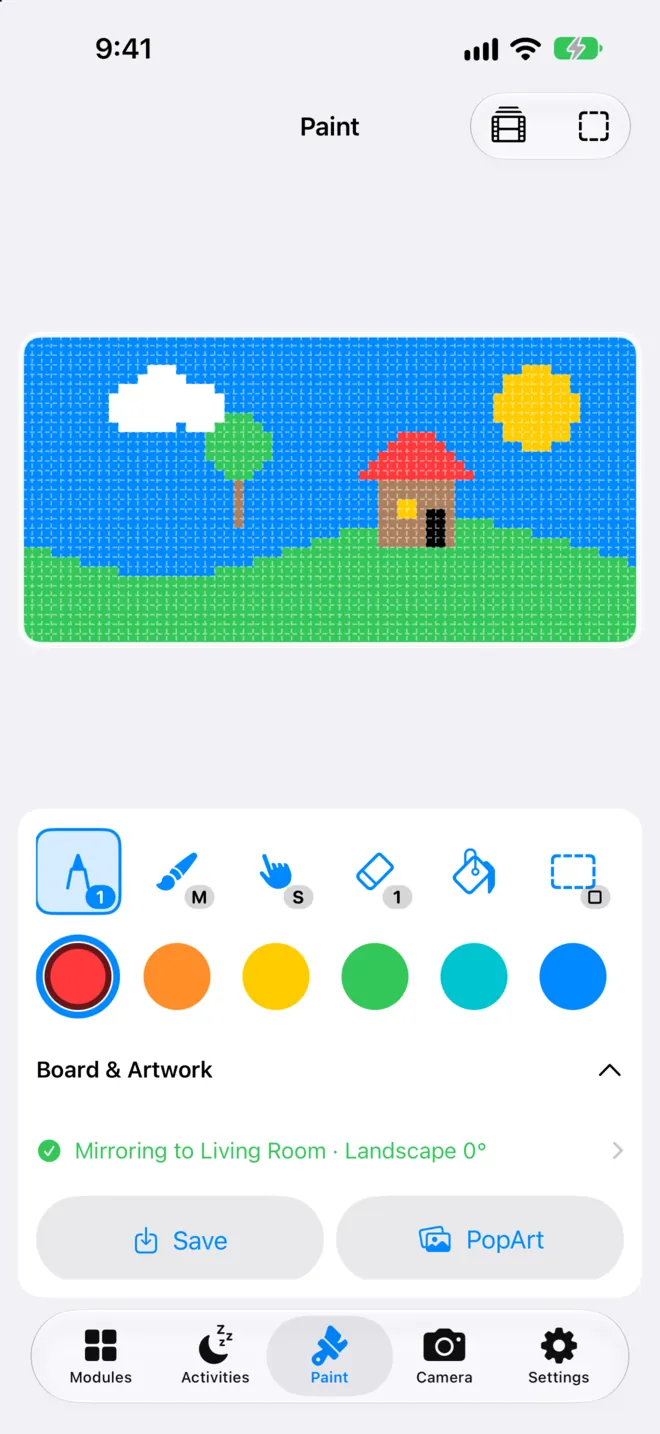
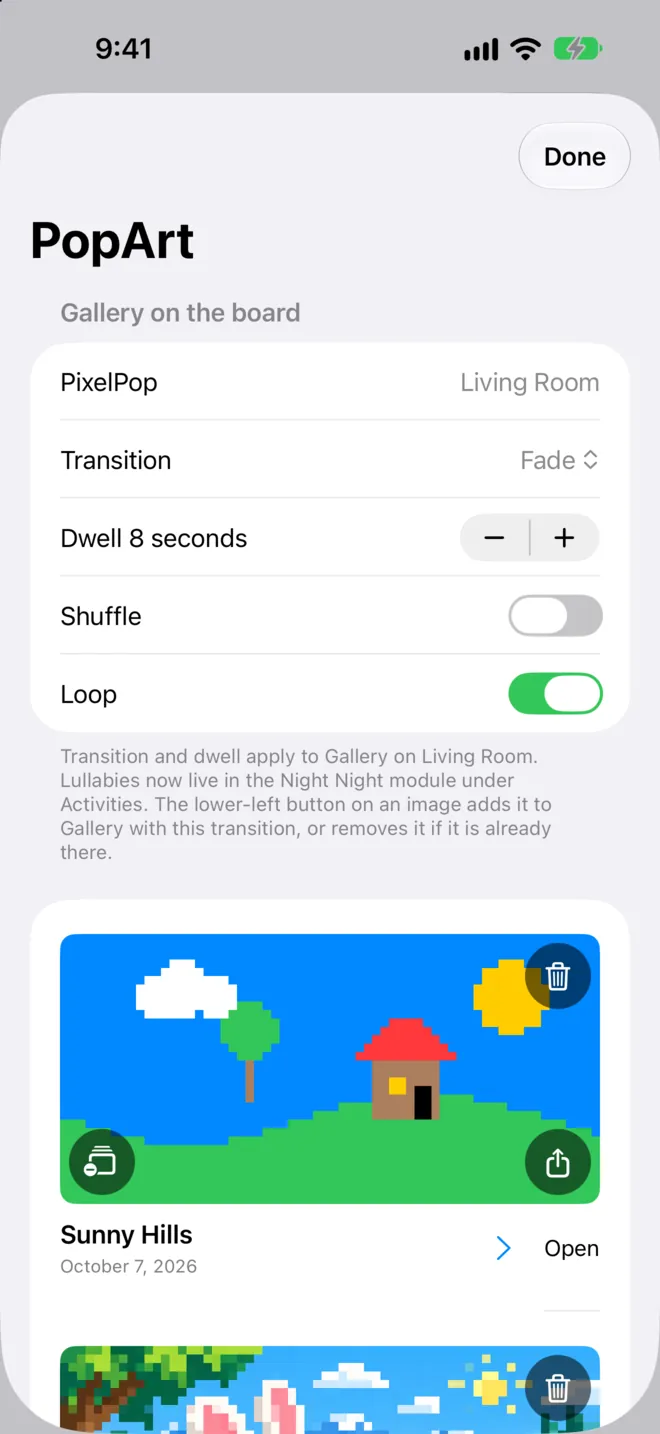
Open Board & Artwork under the colors. Save names your drawing or animation and keeps it on your iPhone. PopArt lists everything you've saved plus six stock panels (Restore factory images brings those back).
- Open puts a piece back on the canvas; Share sends it (animations as GIF); Delete removes the iPhone copy.
- The lower-left button adds a piece to the board's Gallery AutoPop, or takes it off.
- Gallery on the board: transition, dwell time, Shuffle, and Loop.
Camera & Photo Album
Point, and it's on the panel.
The Camera tab shows your camera live on the board; the white frame is the part the panel shows. Tap the shutter for a snapshot, which goes to the board's Photo Album. Flip switches front and back cameras.
In Modules → Photo Album, add photos from your library, drag to reorder, swipe to delete. Companion only sees the photos you pick.
No screenshot of the Camera tab yet.
Settings
Everything else about your board.
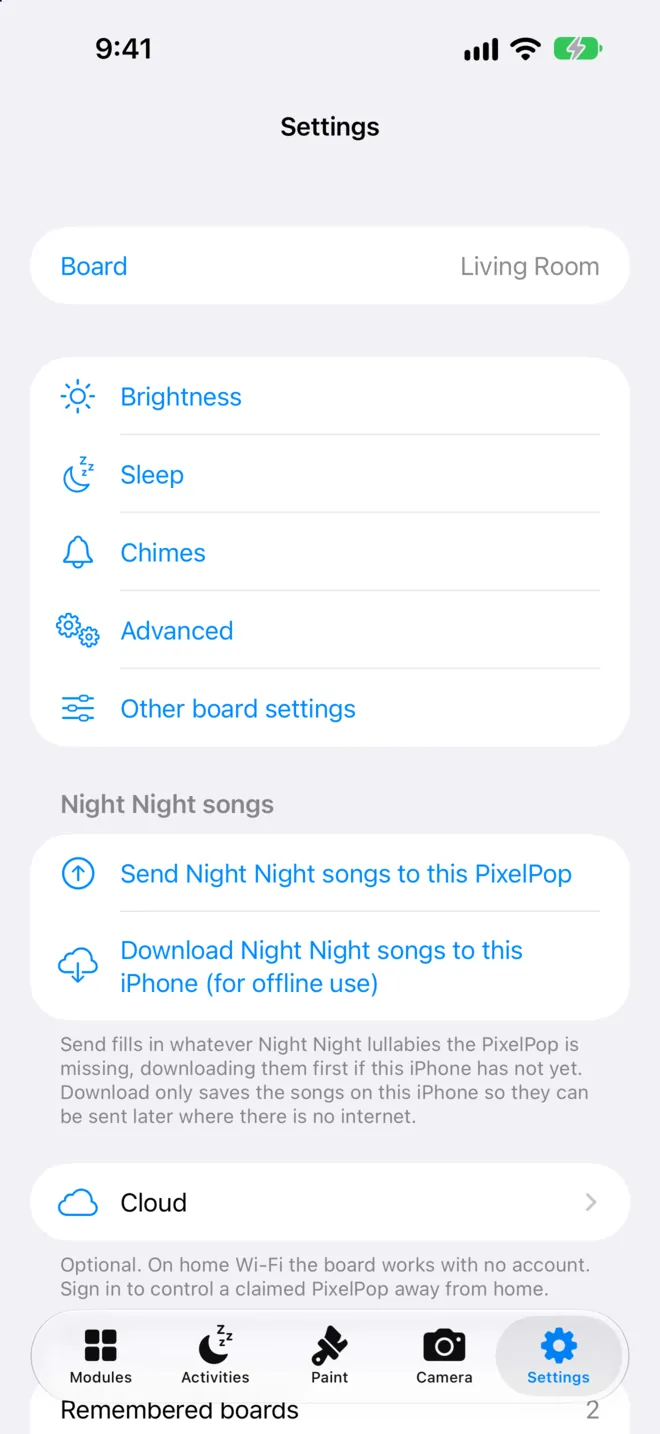
- Board: which PixelPop these settings are for.
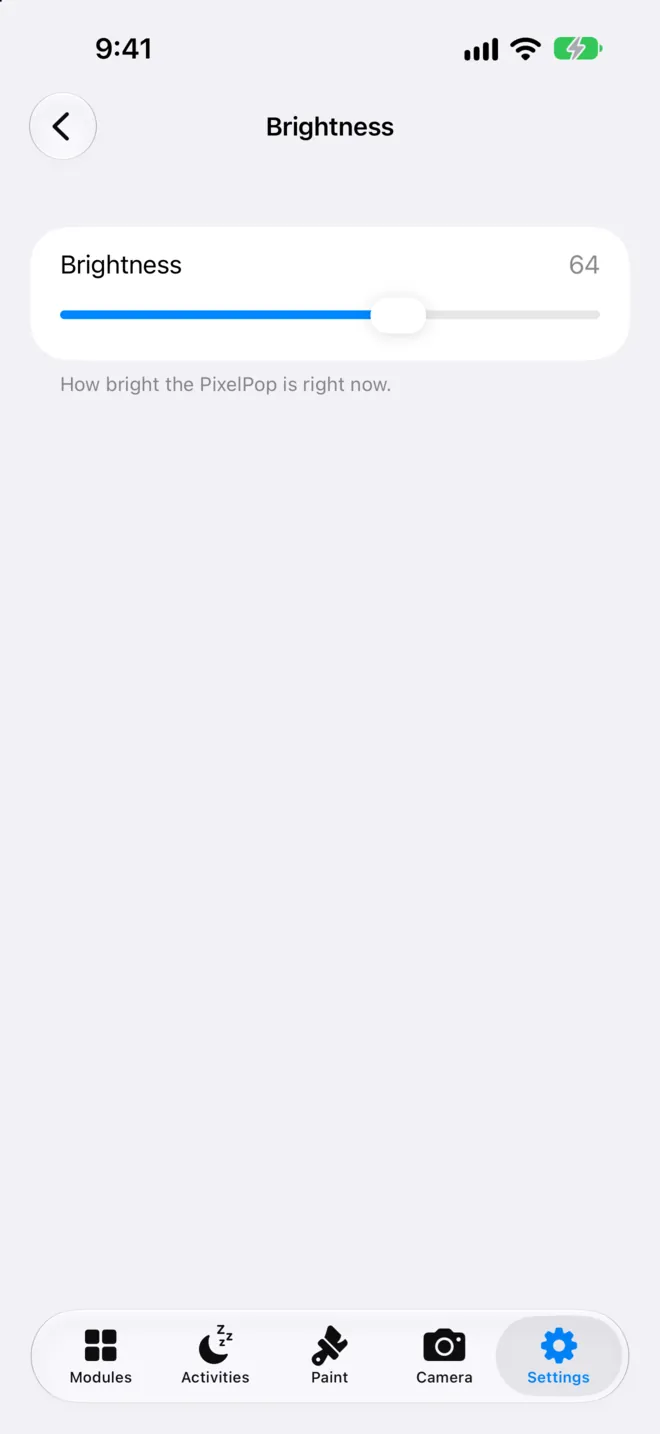
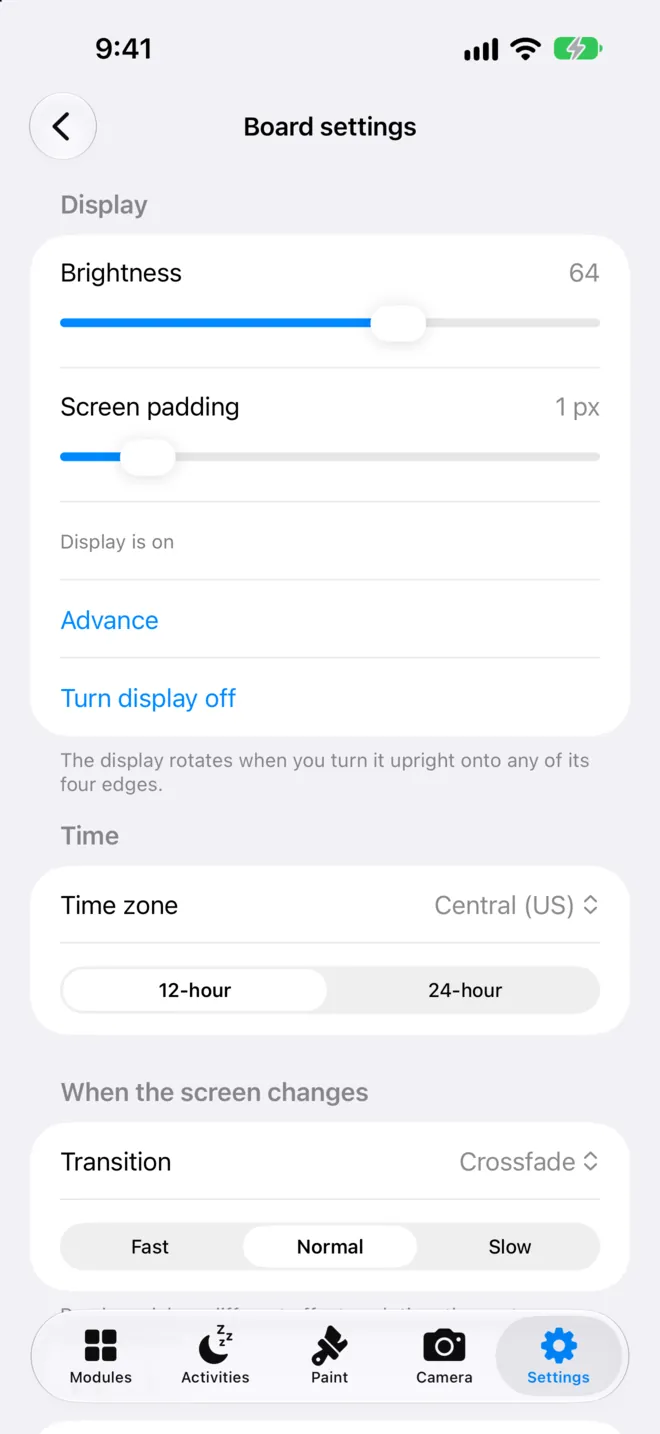
- Display: Brightness, Orientation (auto-rotates on any edge, or pick one), Transition (effect and speed, or Random).
- Time: 12/24-hour and time zone.
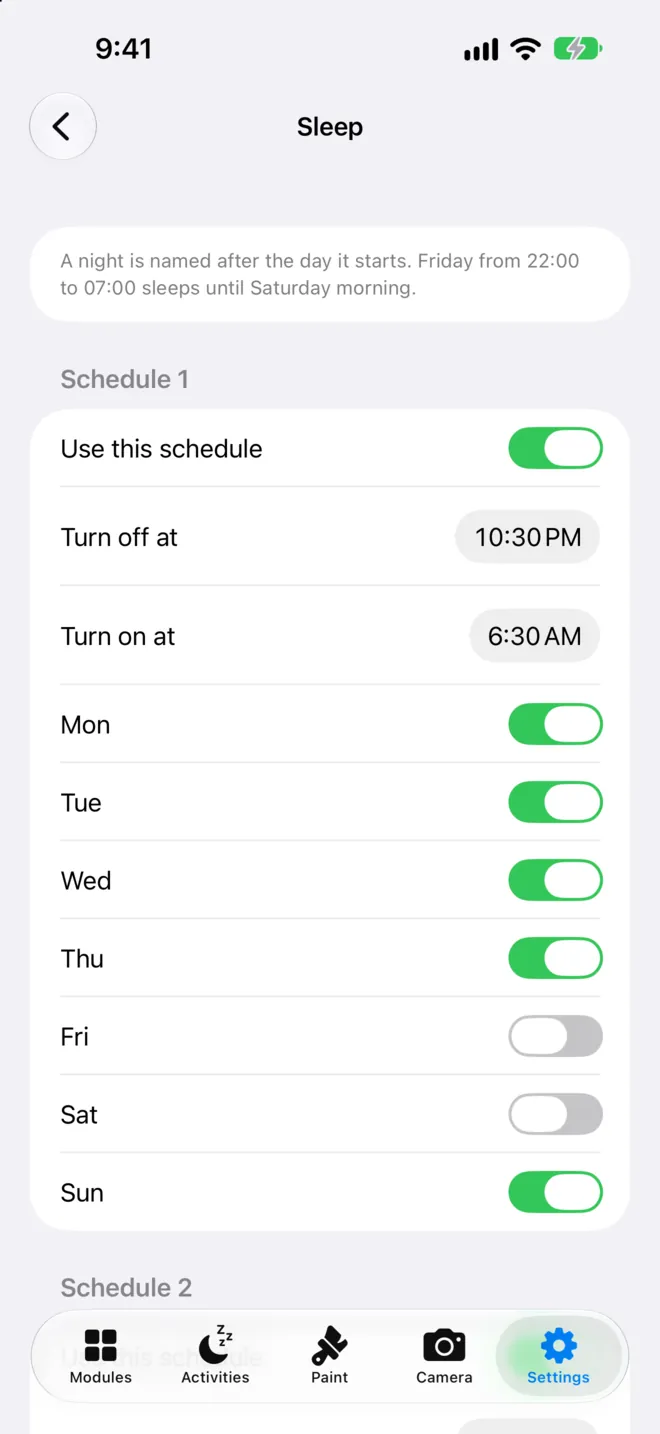
- Sleep: night schedules, what wakes it (urgent notices can light it up), and clearing a manual on/off.
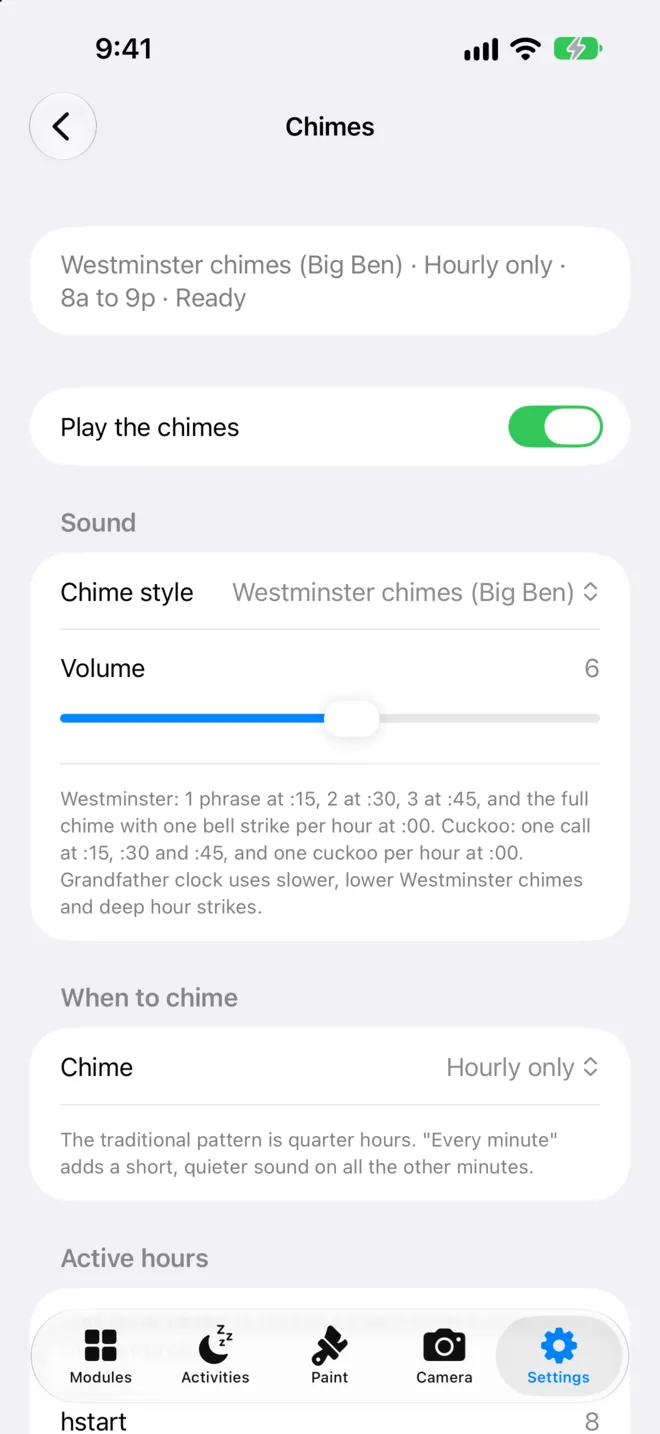
- Chimes.
- Network: device network name (the board answers at name.local).
- Advanced: firmware, Change Wi-Fi, factory settings, reset history, Color Lab (live red/green/blue intensity and wiring).
- Night Night songs: send missing lullabies, or download them for offline use.
- Cloud (optional): sign in to control a claimed board away from home.
- App: remembered boards, About, Credits.
Firmware
Updates over Wi-Fi.
In Settings → Advanced → Firmware update, Companion checks for official firmware and tells you if you're up to date. To install, the board shows a 4-digit code; enter it in Companion (it's valid for five minutes). The display downloads or receives one firmware file, checks it, and restarts. Companion reports when the display is back.
No screenshot of the update flow yet.
Board asleep
When the display is off.
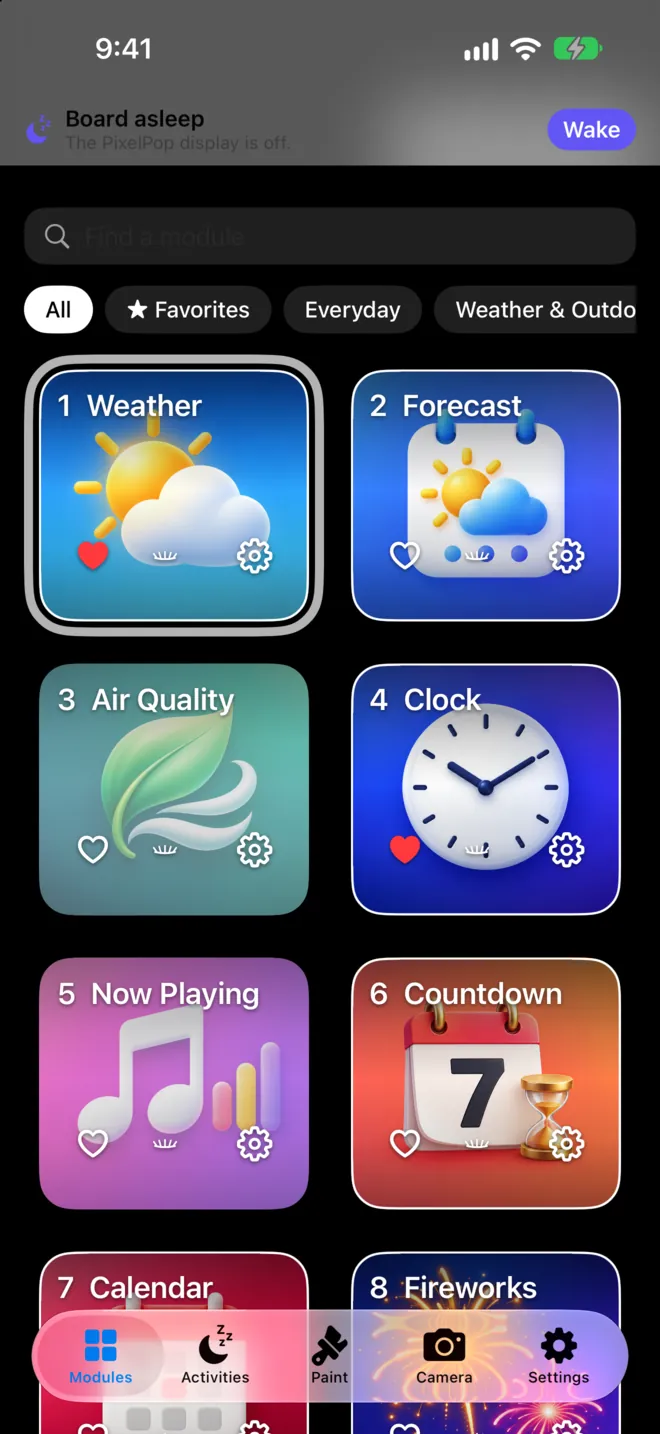
When the display is off, on schedule or by hand, a Board asleep strip appears at the top of every tab. Tap Wake. The button on the board wakes it too.
Troubleshooting
When something seems off.
- No boards found: make sure the board is on and on the same Wi-Fi, check Local Network access for Companion in iOS Settings, then tap Find Boards. Still nothing? Use Add by Address.
- Which board is which? Use Identify.
- Using Apple Watch? PixelPop Watch comes inside the iPhone app; see the Apple Watch tab.
- Board is dark: it may be asleep; tap Wake.
- New router or password: Settings → Advanced → Change Wi-Fi, or see Wi-Fi help.
- Camera shows nothing: turn on Camera for Companion in iOS Settings.
- More help on the Support page.
iPad
The same Companion, on a bigger screen.
One app for iPhone and iPad.
Everything you know
Every feature, same five tabs.
iPad runs the same PixelPop Companion as iPhone: Boards, AutoPops, Activities, Paint, PopArt, Camera, and Settings all work the same way. See the iPhone tab for each screen.
Differences
What changes on iPad.
- Paint turns with you. On iPhone, Paint stays upright. On iPad the canvas follows the way you hold it, in any orientation.
- Roomier AutoPops grid on the wider screen.
No iPad screenshots yet.
On your desk
The same Companion, with a mouse.
Pick AutoPops, preview them, run Activities, change Settings, update firmware, and paint with your mouse. Screens work as described on the iPhone tab. Reach the board over Wi-Fi or with its USB-C cable, and send your Wi-Fi to a new board.
Differences
What's different on Mac.
- No Camera tab and no Fitness card; those need an iPhone.
- No Apple Watch: PixelPop Watch pairs with the iPhone app.
- Install a file from this Mac in Settings → Advanced, for a firmware file on your Mac.
- On This Mac → PixelPop Emulator in Boards connects to PixelPopEmu, so you can try AutoPops before you have a board.
Install
Drag, drop, done.
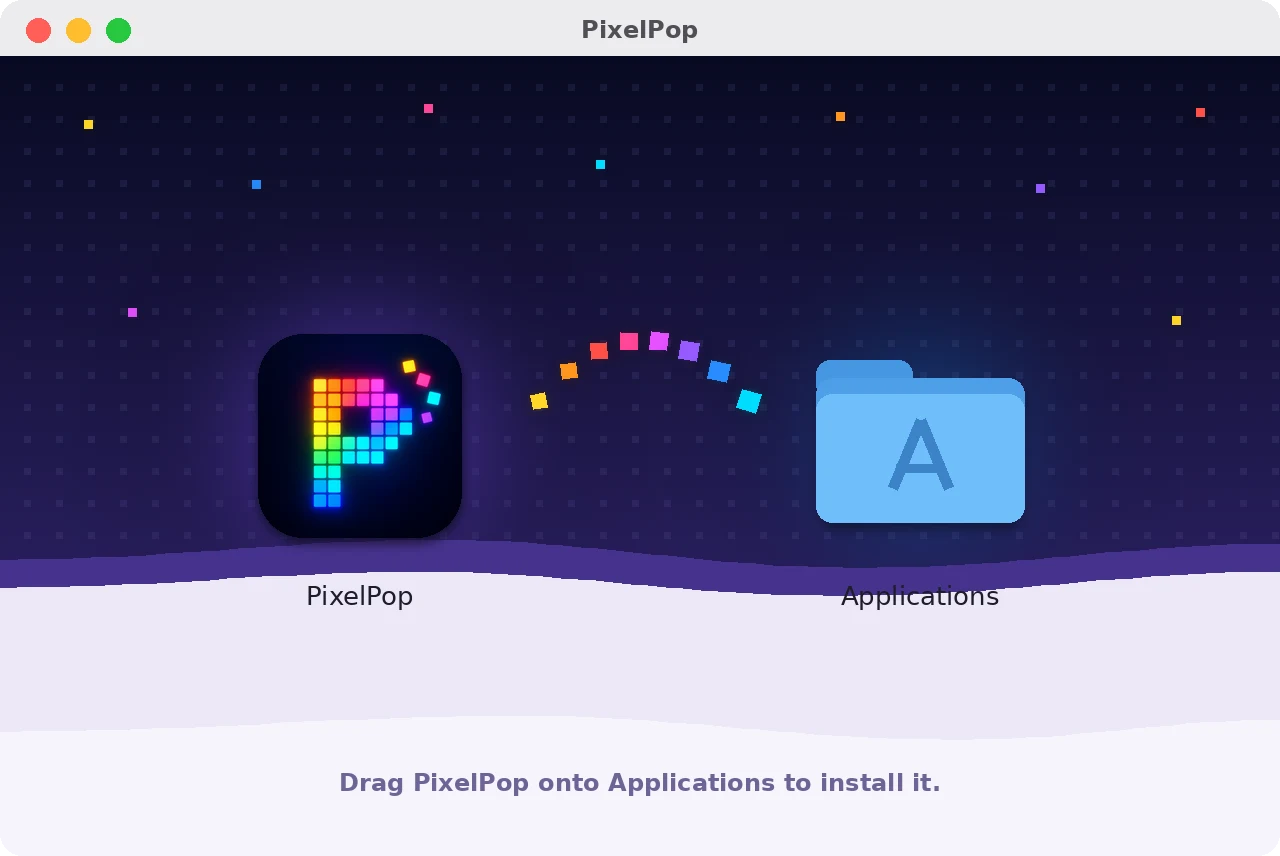
- Open PixelPop.dmg from your Downloads.
- Drag PixelPop onto Applications.
- Open PixelPop and pick your board.
Apple Watch
PixelPop Watch.
Comes inside PixelPop Companion for iPhone: install it from the Watch app on your iPhone.
Getting started
Three steps.
- Set up Companion on your iPhone first; the Watch borrows its board list.
- Open the Watch app on your iPhone, find PixelPop under Available Apps, and tap Install.
- Pick a board. With your iPhone nearby, the Watch reaches the board through it; otherwise it uses its own Wi-Fi.
Apple Watch
Your board, on your wrist.
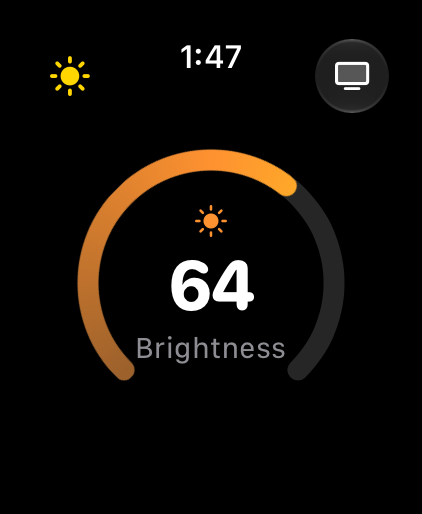
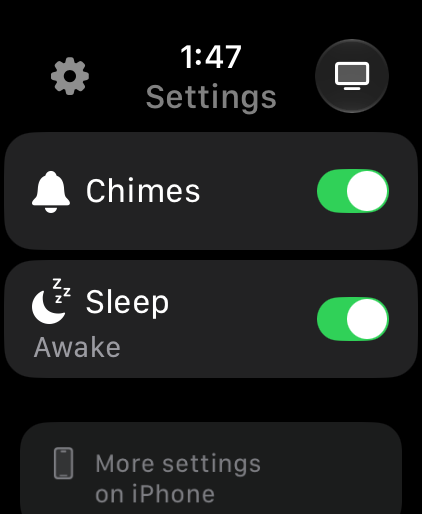
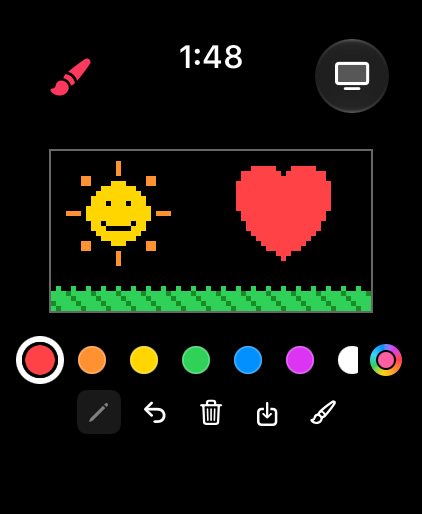
The top-left mode button cycles four modes; touch and hold it to Identify.
- AutoPops: Cover Flow of every AutoPop; tap the center card to show it now.
- Brightness: 0–100 on the Digital Crown.
- Settings: sleep, wake, and Chimes.
- Paint: the full 64×32 canvas with pencil, brush, fill, eraser, zoom, custom colors, and Save to iPhone.
- Complications: show the current AutoPop on your watch face.
Full details in the Apple Watch guide.
More
Every detail.
Tools, custom colors, Save to iPhone, Board asleep, and complications are covered in the Apple Watch guide.