
Support · Board rescue tool
PixelPop won't wake up? Give it some CPR.
PixelPop CPR is a free Mac app that brings a stuck PixelPop back to life over its USB-C cable. It puts fresh software on the board and helps it back onto your Wi-Fi. No buttons to press on the board and nothing to set up.
Free · for Mac (Apple silicon and Intel)
You'll need the USB-C cable that came with your PixelPop.
How it works
Three steps, about a minute.
-
Open PixelPop-CPR.dmg from your Downloads folder.
A window opens with the PixelPop CPR app inside.
-
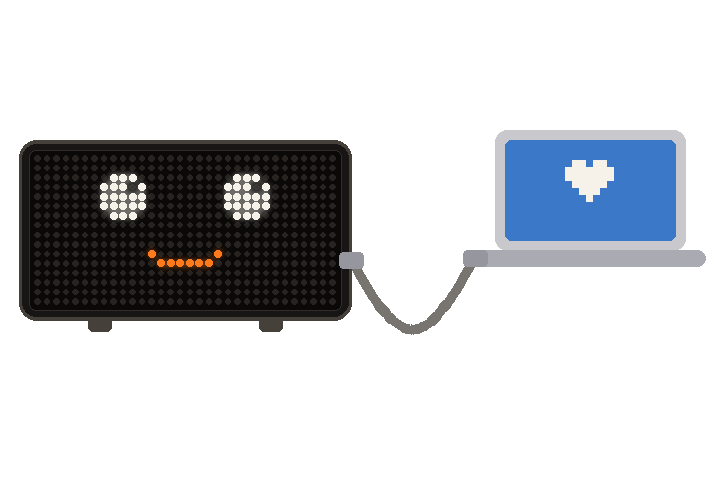
Plug your PixelPop into the Mac, then double-click PixelPop CPR.
Use the USB-C cable that came with the board. Want to keep the app? Drag it to Applications first. If your Mac asks to allow the accessory to connect, click Allow.
-
Click Start, keep it plugged in, and type your Wi-Fi.
When the board smiles and the app says "All better!", you're done. You can unplug it.
Good to know
If something looks off.
The app can't find the board
Plug the cable straight into the Mac rather than a hub, and try another USB-C cable if you have one. Some cables only charge and can't carry data.
Type the Wi-Fi name exactly
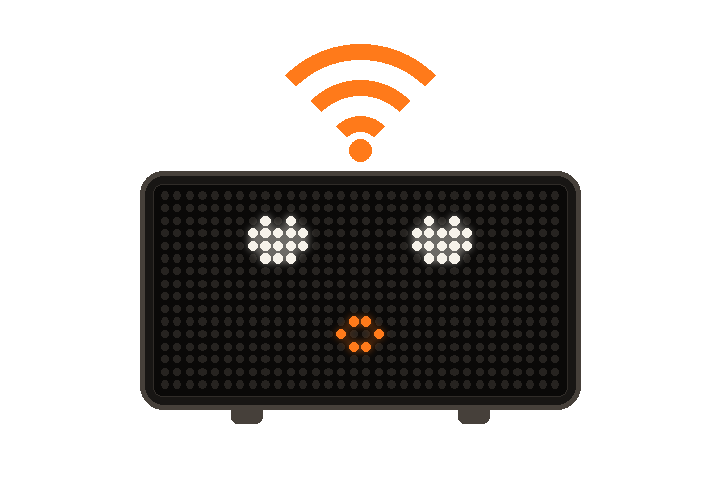
Use the name just as it shows on your phone or Mac, capitals and spaces included. PixelPop needs a 2.4 GHz network. If your router hides it, the Wi-Fi help page shows how to turn it on.
Don't unplug in the middle
The app shows a heartbeat while it works. If the cable comes out by accident, plug it back in and click Start again.
Your settings stay put
PixelPop CPR only replaces the board's software. It keeps a backup copy of the old one on your Mac, just in case.
More help