
PixelPop Watch · User guide
Your board, right on your wrist.
PixelPop Watch puts your display one crown turn away. Flip through your modules in Cover Flow, set the brightness, put the board to sleep, or paint a tiny picture that lights up on the panel as you draw.
- Cover Flow for every module
- Brightness on the crown
- Sleep, wake, and Chimes
- Paint on the full 64×32
- Getting started
- The mode button
- Cover Flow
- Brightness
- Settings
- Board asleep
- Watch Paint
- Complications
- Tips & troubleshooting
Written for PixelPop Watch build 11.
Getting started
Three steps, and you're in.
PixelPop Watch is part of PixelPop Companion for iPhone. Set Companion up first: it's the app that finds your boards, and the Watch borrows its list.
-
1
Install it from your iPhone
The Watch app comes inside Companion. Open the Watch app on your iPhone, find PixelPop under Available Apps, and tap Install. If automatic app install is on, it's already there.
-
2
Pick a board
The first time you open it, the Watch shows Boards. Tap the one you want; a checkmark marks your choice. Switch any time with the TV button in the top-right corner.
-
3
Let your iPhone do the talking
When your iPhone is nearby, the Watch reaches the board through the phone, which is already on your Wi-Fi. If the phone is out of reach, the Watch talks to the board over its own Wi-Fi instead, as long as both are on the same network.
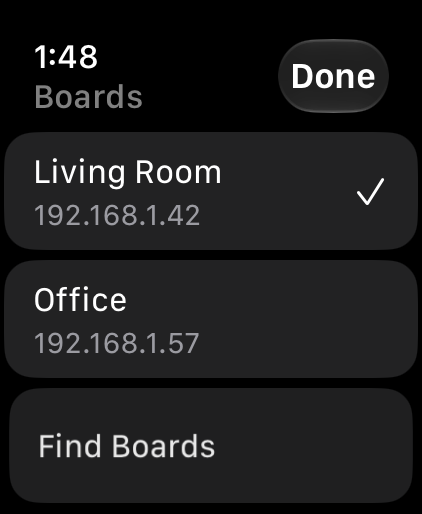
Boards, with the Living Room board selected.
The Boards list
- Done takes you back to the board you picked.
- Each row shows the board's name and address. The checkmark is the board the Watch is using.
- Find Boards looks again (it shows “Looking…” while it searches). Scroll down for Add by address: type a host name or IP and tap Add.
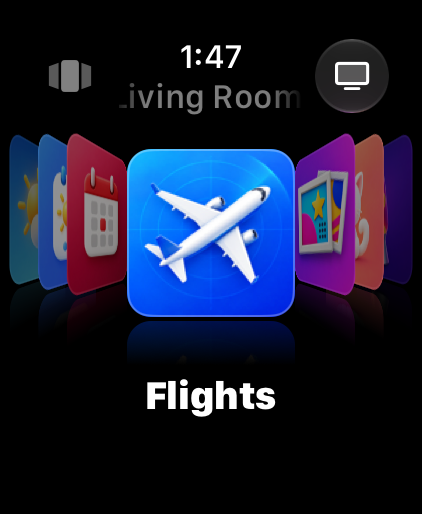
Modules: Cover Flow. The mode button shows the Cover Flow mark.
The mode button
One button. Four modes.
The button in the top-left corner 1 always shows the mode you're in. Tap it to move to the next one:
- Modules
- Cover Flow of every module on your board.
- Brightness
- A big gauge you set with the crown or a finger.
- Settings
- Chimes, and the switch that puts the display to sleep.
- Paint
- A pocket canvas that draws straight onto the board. Then back to Modules.
Which board is it? Identify.
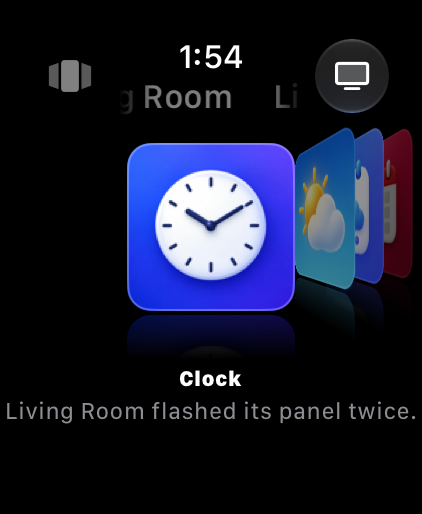
Touch and hold the mode button to flash the board you're controlling. The Watch says “Flashing Living Room…”, then “Living Room flashed its panel twice.” Handy when there's more than one PixelPop in the house.
After Identify.
Modules mode
Cover Flow, for your whole board.
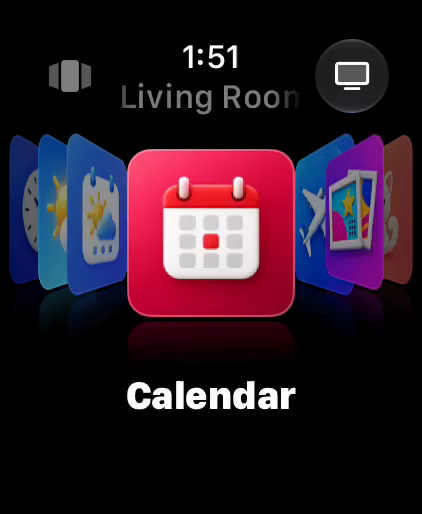
Every module on your board gets a card, including the ones you've turned off (those look dimmer and say “Off”). The card in the middle is the one you're on.
- The mode button. Tap for the next mode; touch and hold to Identify.
- The board's name.
- Boards: switch to another PixelPop.
- The centered card. Tap it to put that module on the board now.
- Side cards. Tap one to slide it to the middle.
- The module's name. A small spinner next to it means the Watch is still connecting.
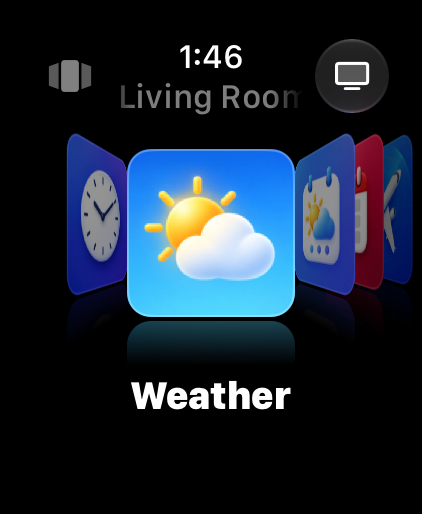
Cover Flow with Weather centered.
Gestures
- Turn the Digital Crown
- The cards follow the crown, with a click each time a new card reaches the middle. Let the crown rest for about half a second and the board switches to that module. The list doesn't wrap around: it stops at either end, like real Cover Flow.
- Drag sideways
- Push the cards left or right; a quick flick keeps them gliding.
- Tap the centered card
- Shows that module on the board right away.
- Swipe up on the centered card
- Turns that module on or off on the board, the same switch as the eye in Companion. The Watch confirms with a note like “Fireworks on”.
- Touch and hold the centered card
- Opens that module's quick settings.
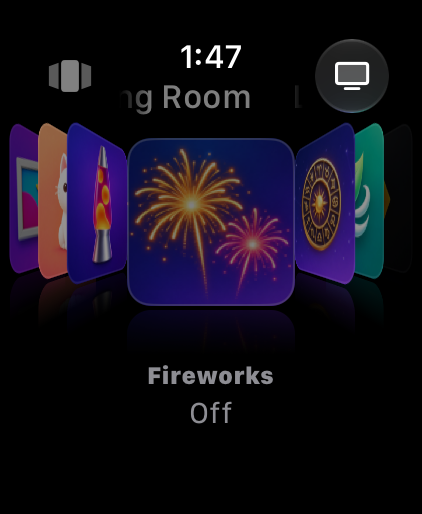
An Off module stays on Cover Flow, dimmed. Tapping it says “Swipe up to turn on”.
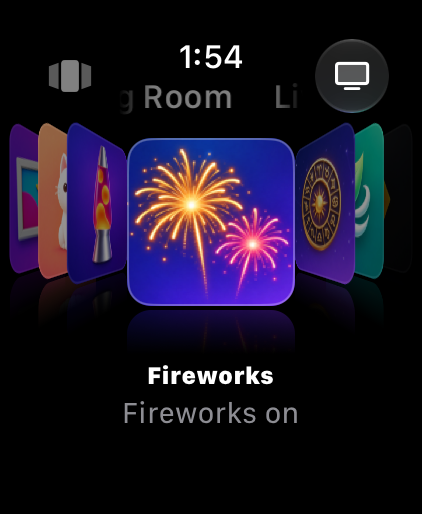
One swipe up later: “Fireworks on”, and it's back in the rotation.
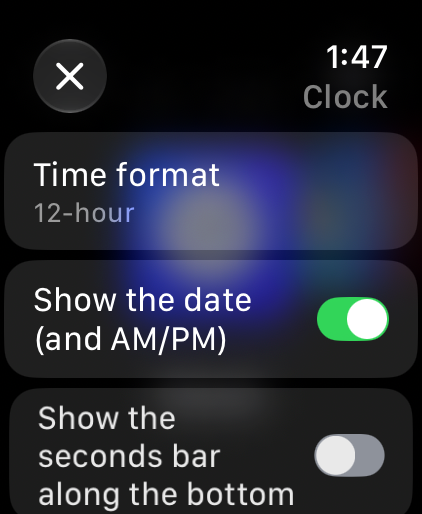
Quick settings for Clock, opened with a touch and hold.
The finger is drawn in to show the drag; the gauge is the real app.
Brightness mode
Turn it up. Or down. With a flick.
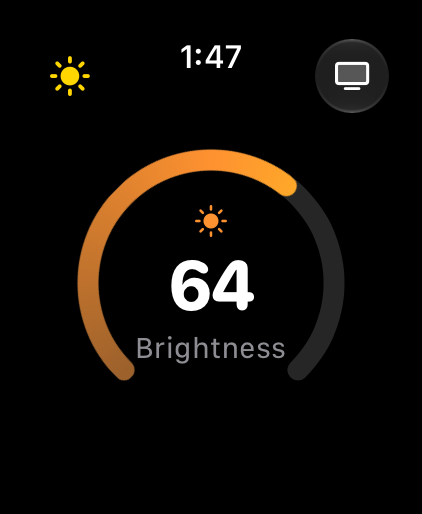
- The number is the board's brightness, from 0 to 100.
- The ring fills as it gets brighter. It's open at the bottom, and that gap is where “Board asleep” shows up if the display is off.
- Turn the crown
- One point per detent, with a light tick you can feel.
- Drag left or right
- Anywhere on the gauge. Right is brighter, left is dimmer. A drag across the whole screen is about 100 points, so small moves make small changes, with a click every 10.
Settings mode
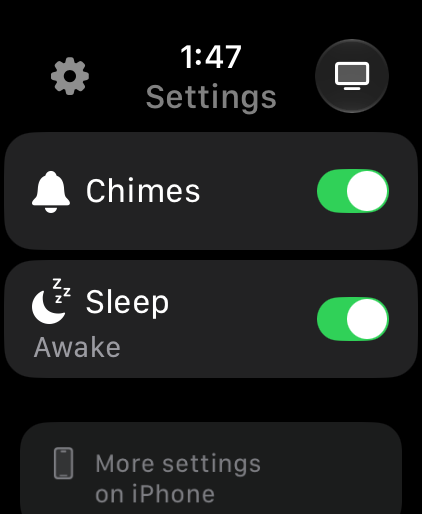
The two switches you reach for most.
- Chimes
- Turns the board's hourly chimes on or off. Only the switch changes; your chime style, volume, and hours stay as they are. If a board has no Chimes switch to offer, the row tells you so.
- Sleep · Wake Up
- The display switch is named for what it will do. While the board is awake it reads Sleep with a moon; once it's asleep it reads Wake Up with a sun. The small line under it says Awake or Asleep.
Board awake: the switch says Sleep.
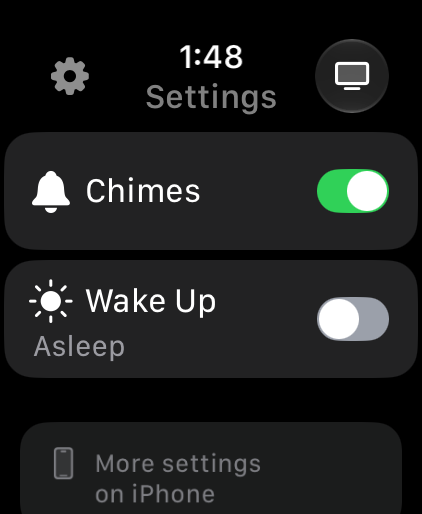
Board asleep: the switch says Wake Up.
Board asleep
Asleep? One tap wakes it.
When the board's display is off, a small Board asleep · Wake pill appears in Cover Flow, Brightness, and Paint. Tap it: it says Waking…, the Watch taps your wrist when the panel is back on, and the pill disappears. If the board can't be reached it says Couldn’t wake. Tap to retry for a few seconds.
The Watch checks whenever you raise your wrist, and about once a minute while the app is open.
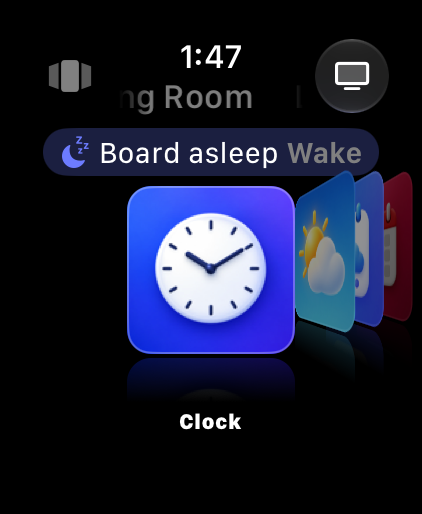
Cover Flow: above the cards.
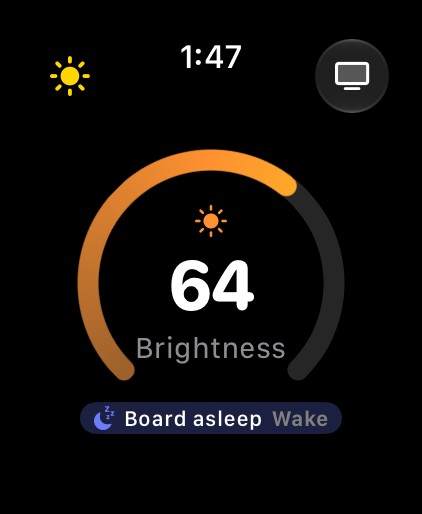
Brightness: in the gap under the ring.
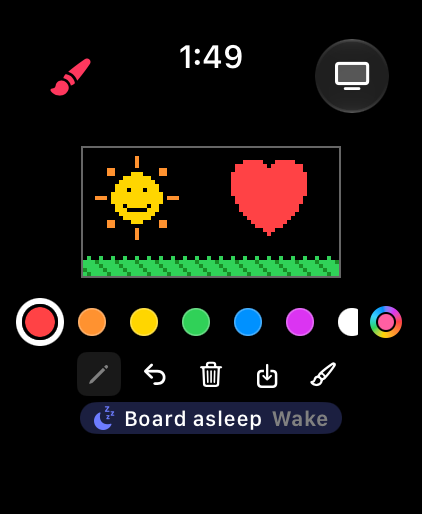
Paint: one line under the tools.
Watch Paint
A pocket canvas. Every pixel is an LED.
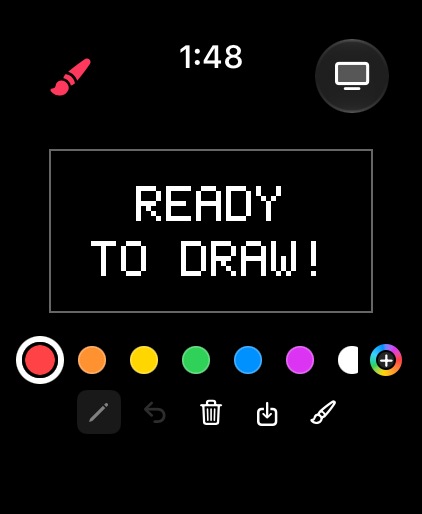
Paint gives you the board's whole canvas, 64×32, right on your wrist. Draw with a finger and the board lights up as you go: one pixel on the Watch is one LED on the panel. When you switch modes, the board goes back to its modules.
- The canvas, with a faint outline so you can see its edges against the black.
- The palette: eight PixelPop colors plus up to four of your own. The color you're using gets a bold white ring.
- The rainbow chip opens the custom color picker. It stays pinned at the end of the row.
- The tool button shows your tool. Tap it to choose another.
- Undo, up to 24 steps back.
- Clear wipes the canvas (and Undo can bring it back).
- Save to iPhone sends your drawing to Companion.
- Draw / Pan decides what your finger and the crown do.
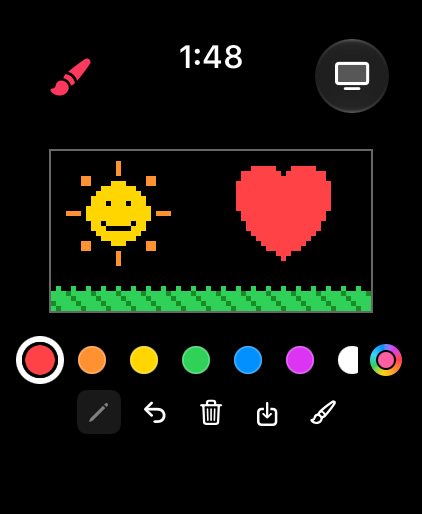
Watch Paint, with a drawing in progress.
The welcome note, on the Watch and on the board.
“READY TO DRAW!”
When you open Paint, the canvas and the board both say READY TO DRAW! It's a note, not part of your picture: your first stroke, fill, or clear wipes it away, on the Watch and on the panel, and your drawing starts on a clean canvas. Undo stops at that clean canvas; it never brings the note back.
On a board that's mounted on its side, the canvas is tall (32×64) and the palette and tools move beside it.
Tools
- Pencil
- One crisp pixel at a time.
- Brush
- Three sizes (S, M, L), with an optional Soft edge.
- Fill
- Tap once to flood a connected area of the same color.
- Eraser
- Paints pixels back to black. While it's on, no color is ringed; tap any color to go back to the Pencil.
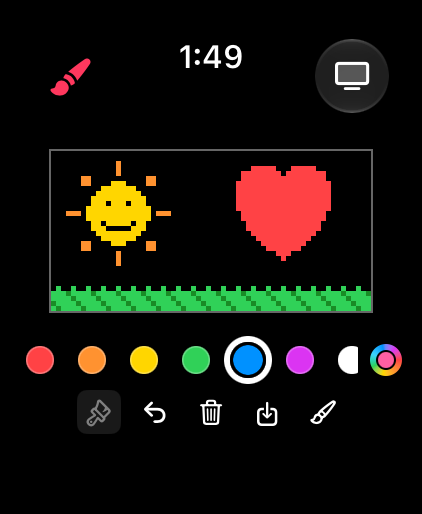
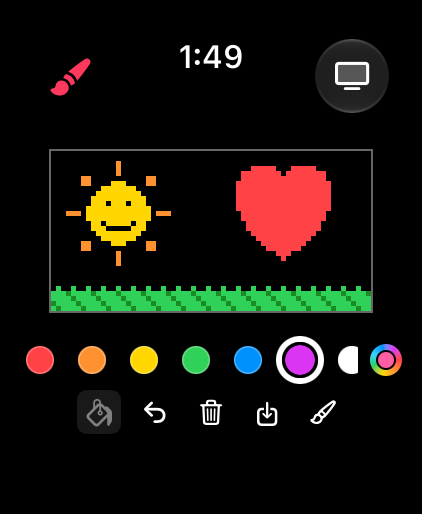
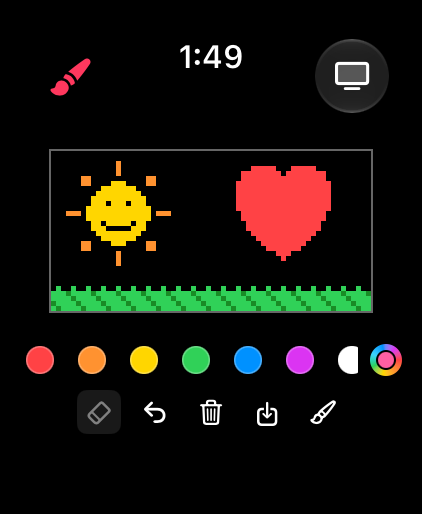
Pencil, with red ringed in the palette.
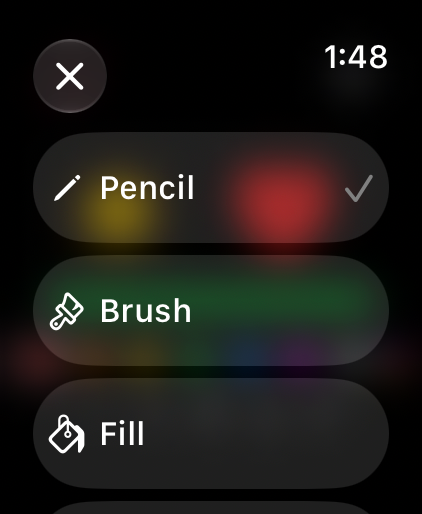
The tool list. Scroll for Eraser.
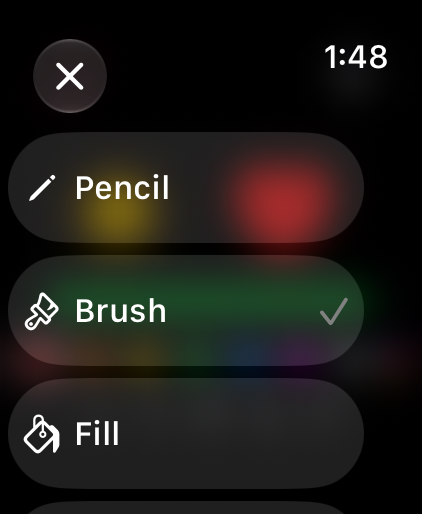
With Brush picked, Size and Soft edge sit below the list.
Zoom in for the details
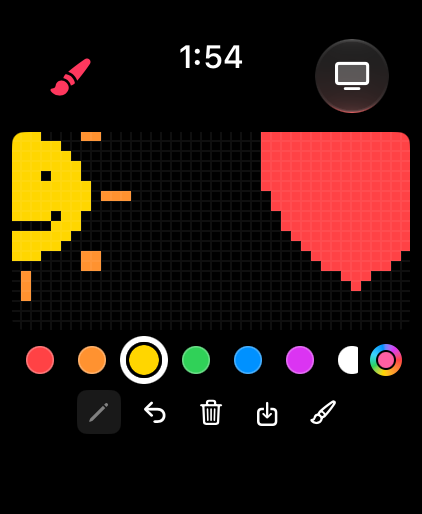
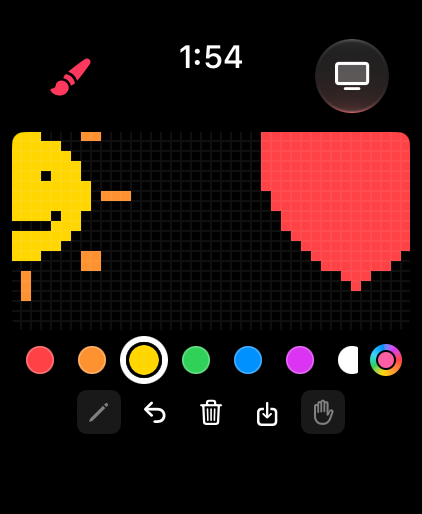
1×: the whole board fits.
- Crown, in Draw
- Zooms from the whole board up to 6×. Once the LEDs are big enough, thin grid lines show where each one is. While you draw zoomed in, the view follows your stroke.
- Draw / Pan button
- The brush icon means Draw: your finger paints. Tap it for the hand, Pan: your finger moves the canvas and the crown slides it sideways. Tap again to draw.
Your own colors
Tap the rainbow chip at the end of the palette to mix a color.
- Turn the crown to move around the color wheel, 5° at a time; it keeps going all the way around. You can also tap or drag the rainbow bar.
- The two rows of chips set saturation (100, 75, 50, 25, 0%) and brightness (100, 80, 60, 40, 20%).
- The big swatch previews it with its hex code. Tap Done to paint with it.
- Your last four custom colors join the palette, newest first, and stay there next time. Two colors that would look the same on the LEDs count as one.
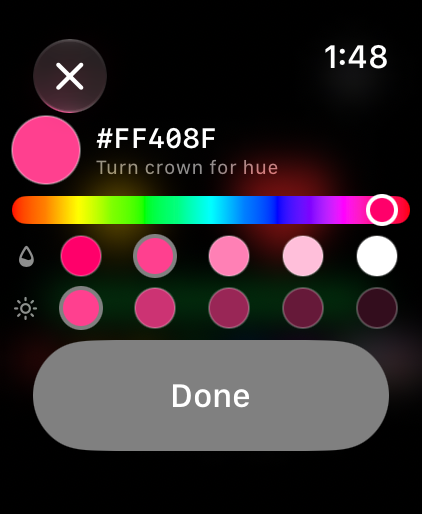
The color picker.
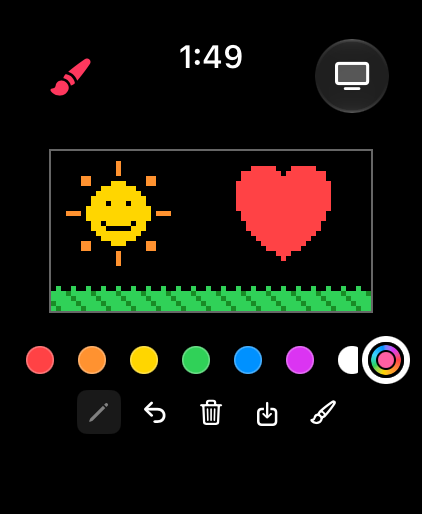
Painting in a custom color.
Save to iPhone
Tap Save (the tray with the arrow) and your drawing goes to Companion's PopArt gallery as “Watch Paint” plus the date and time. One line under the tools tells you how it went:
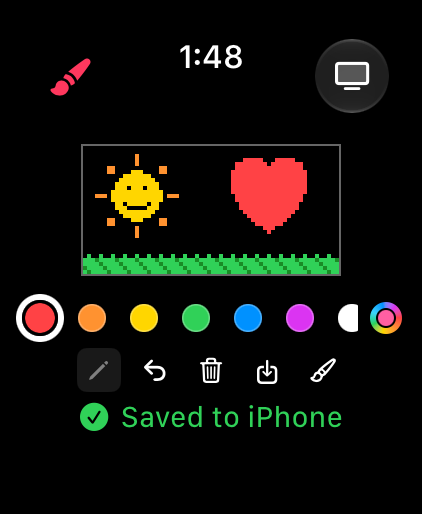
Saved to iPhone. It's in PopArt now.
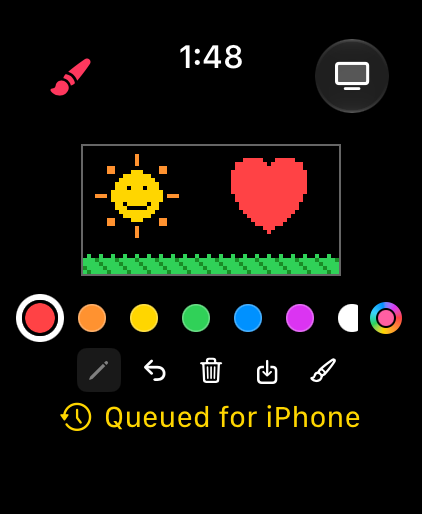
Queued for iPhone. The phone wasn't reachable; it arrives the next time Companion runs.
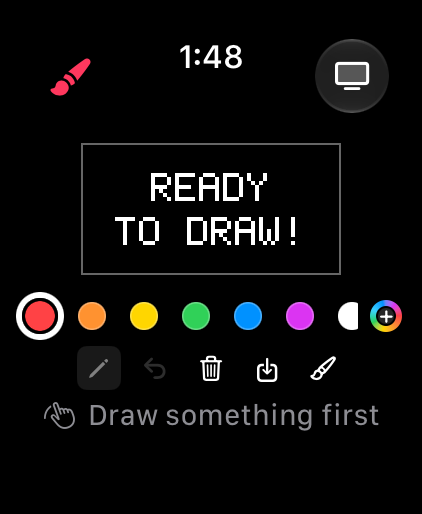
Draw something first. There's nothing to save yet.
Complications
See what's on the board from your watch face.
Add the PixelPop complication to a watch face (touch and hold the face, tap Edit, and pick PixelPop). It shows the module that's on your board right now, with the PixelPop “P”. Tap it to open PixelPop Watch.
It comes in four shapes: circular, rectangular, corner, and inline. The rectangular one adds the board's name. Until the Watch has heard from a board, it simply says PixelPop (rectangular: Open PixelPop). On tinted faces the P takes on the face's color.
 WeatherWeatherLiving RoomWeather
 Weather10:09
Illustration The complications are drawn in HTML using the real PixelPop P artwork from the app. Complications can't be added to a face in the Simulator without a person, so these aren't screen captures.
Tips & troubleshooting
When something seems off.
- A little spinner sits next to the module name
- The Watch is still reaching the board. It keeps trying quietly in the background; if it takes a while you'll see “Still trying…”. Keep your iPhone nearby, or make sure the Watch is on the same Wi-Fi as the board.
- The Boards list is empty
- Open Companion on your iPhone once so the Watch can pick up its list, tap Find Boards, or add the board under Add by address.
- Tapping a card doesn't show it
- If it looks dim and says “Off”, the module is turned off. Swipe up on it to turn it on.
- A note says the board is busy
- Some things take over the panel for a while, like Paint, Camera, a notice, or an update. The Watch tells you (“Paint is using the board.”, “The board is updating.”). Try again once it's done.
- “Couldn't switch — try again”
- The board didn't answer in time. Tap the card again.
- Not sure which board you're controlling
- Touch and hold the mode button to Identify: the board flashes its panel twice.
- Your drawing says “Queued for iPhone”
- That's fine: open Companion on your iPhone and it lands in PopArt.
- “Couldn’t wake. Tap to retry”
- The board didn't hear the Wake. Check that it's powered and on Wi-Fi, then tap the pill again.
- Chimes says “Set up Chimes on iPhone”
- The Watch couldn't load the board's Chimes settings. Set Chimes up in Companion; the switch appears here once the board offers it.